Free Online WebP Compressor
Compress WebP images losslessly or by target file size in KB. Keep alpha transparency and animation frames intact with 100% private on-device compression.
Drop your image here
- WEBP
1.0 MB → 516 KB
File size, 52% smaller
2000×1330 px
Same width and height
WebP
Same format
100% private. Nothing is uploaded.
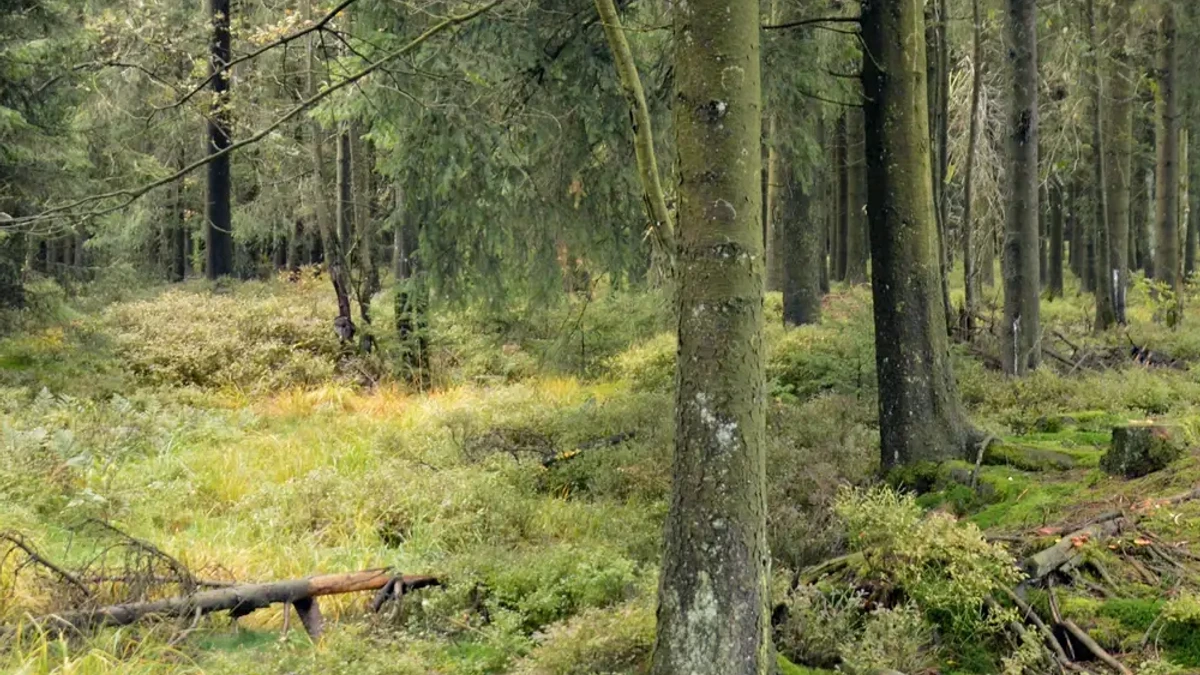
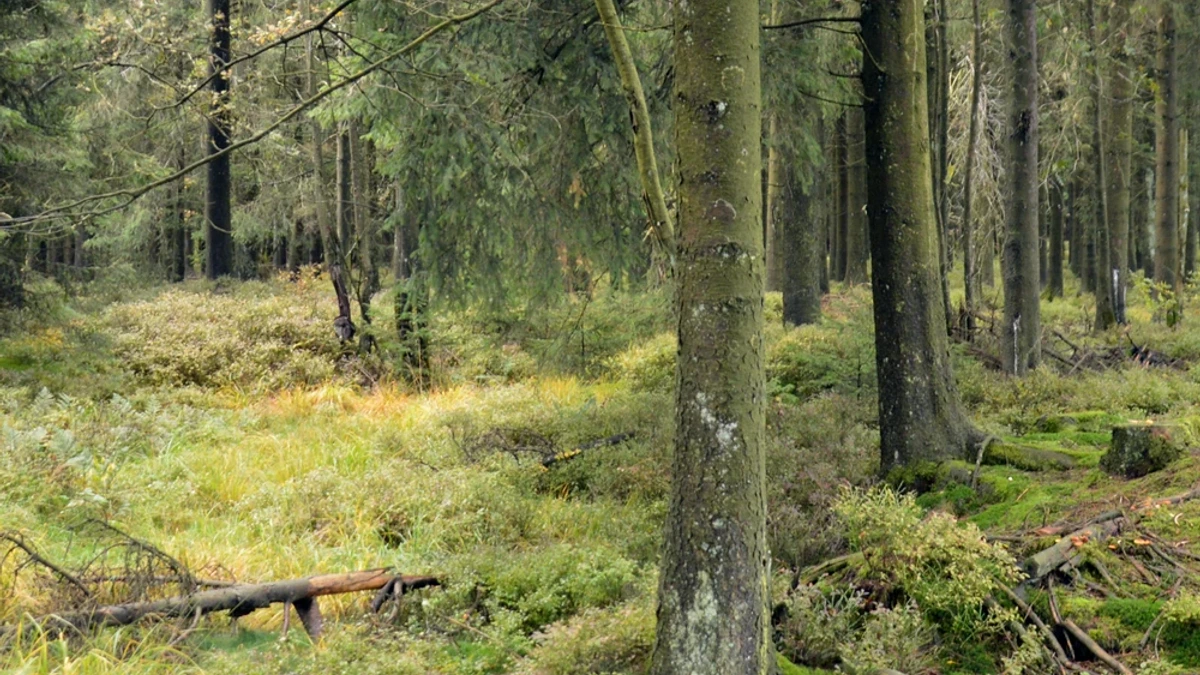
Compress WebP Example: Before and After
How the WebP Compressor Works
Add Your WebP Files
Drag WebP images onto the page or pick them from your device. Still and animated WebPs both work.
Pick a Quality or a Target Size
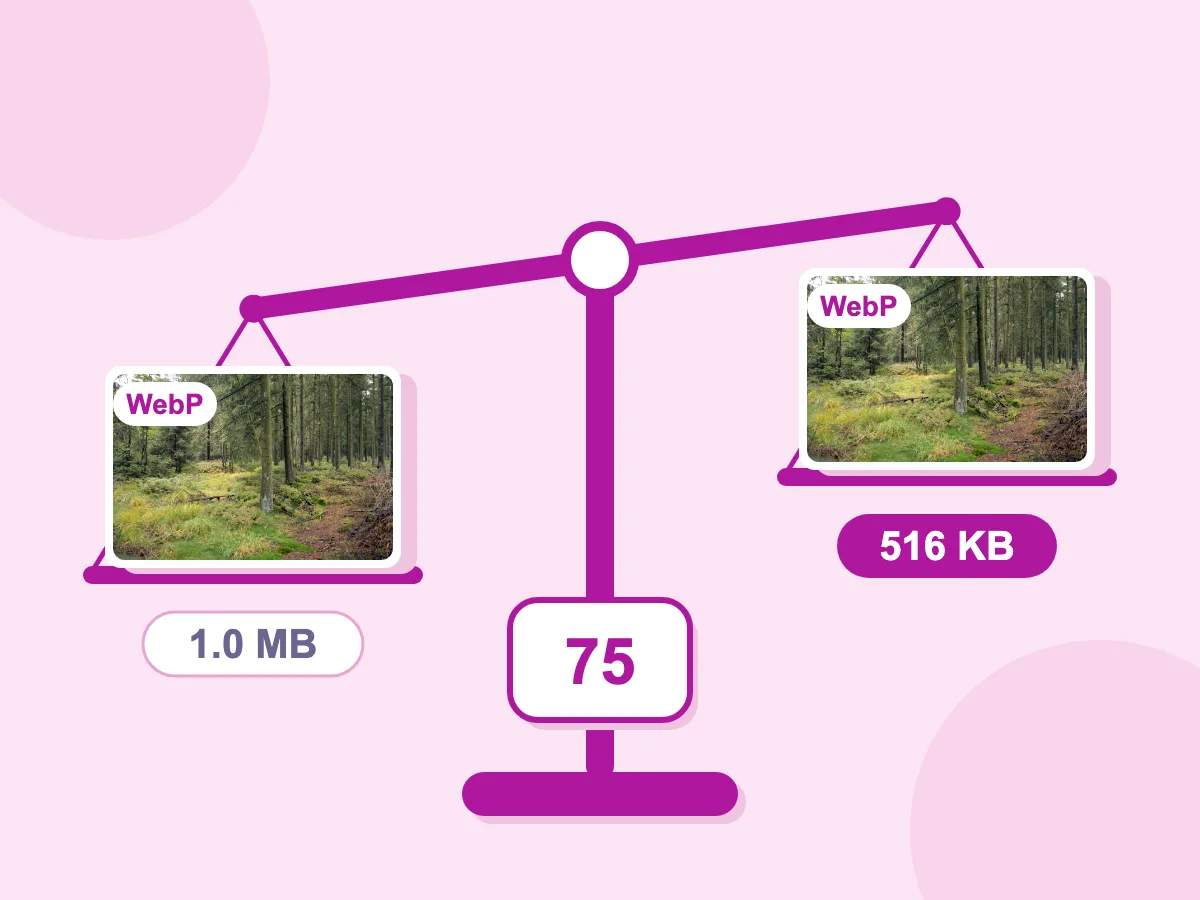
The Quality slider starts at 75. At 100, a still image is saved as lossless WebP. Or type a Target file size in KB or MB. Resize and Advanced settings sit below.
Compare and Download
Press Compress, then open the compare view to check the result. One file downloads on its own, and a batch comes as one ZIP.
Compress WebP Lossy or Lossless
Quality Slider From 10 to 100
The Quality slider runs from 10 to 100 and starts at 75. A lower number gives a smaller file. Our 1.0 MB forest photo came out at 516 KB at 75, still 2000×1330.
Lossless WebP at Quality 100
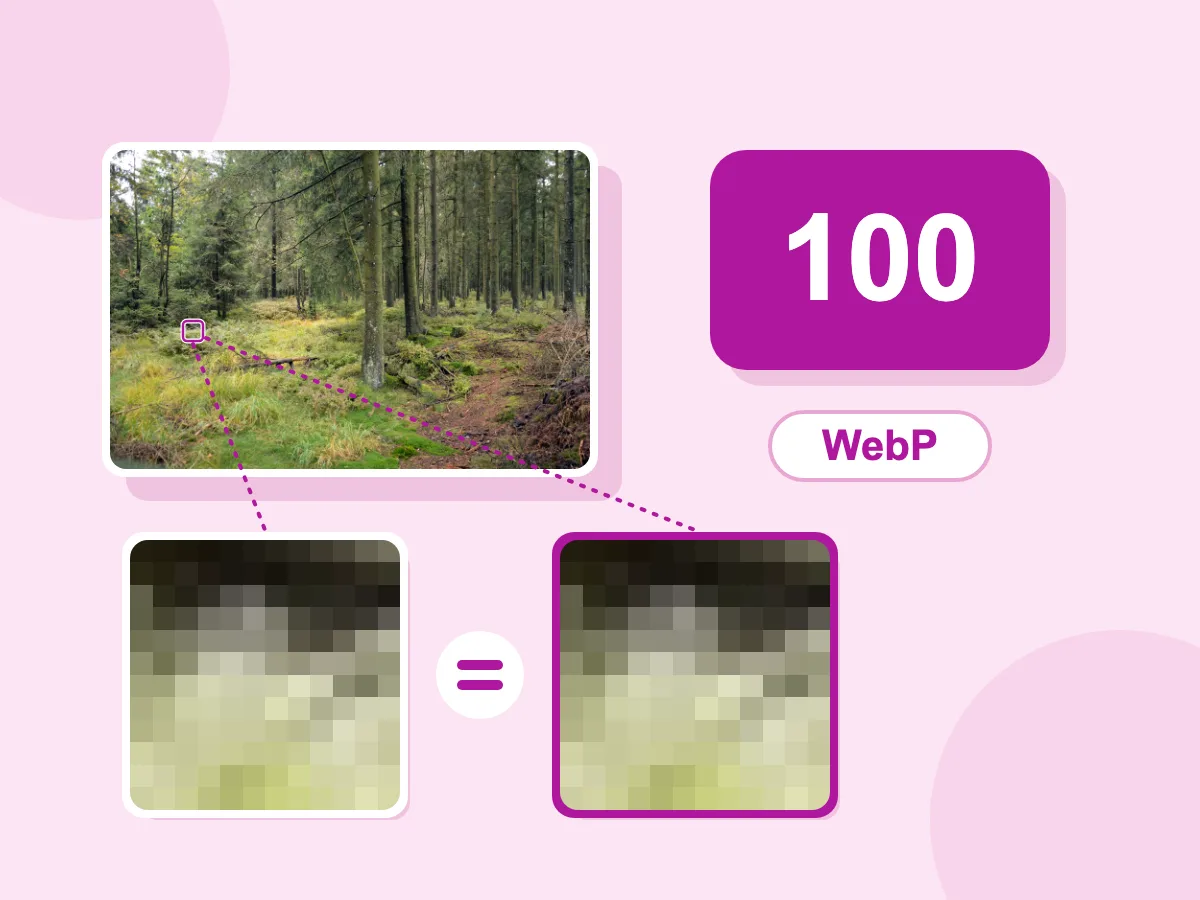
Set Quality to 100 and a still image is saved as lossless WebP, so no pixel changes. It suits logos, screenshots and text. With the other settings at their defaults, a photo that was already lossy gets bigger: our 1.0 MB forest photo came out at 3.7 MB. A Target file size lowers Quality below 100, so that file is no longer lossless.
- Compress to a Target KB or MB
- Keeps Transparency
- Animated WebPs Never Lose Frames
- Batch Compress to One ZIP
- Files Stay on Your Device
- Free, No Signup, No Watermark
What People Compress WebP Images For
Website Speed
- Recompress WebP images that were exported at a high quality
- Cap hero images at 1920 px with Max dimension
- Fit a WebP under an upload limit with Target file size
- Strip EXIF and GPS data before you publish
Logos, Icons and Stickers
- Save logos and screenshots as lossless WebP at Quality 100
- Keep see-through areas on stickers and icons
- Make a JPG or PNG copy for apps that can't open WebP
- Keep an animated WebP's frames when you resize or convert
Shops and Content Teams
- Bring a full set of product WebPs under one size target
- Batch compress a folder and download one ZIP
- Keep originals apart with the _compressed suffix
- Check each image in the compare view before you upload
What Is WebP Compression?
WebP compression is how WebP files store images in less space. Lossy WebP drops fine detail that is hard to see, much like JPEG but usually in a smaller file. Lossless WebP keeps every pixel, like PNG. Both can keep see-through areas and animation. Compressing a WebP saves it again smaller; converting turns another format into WebP.
How to Compress WebP Images Without Losing Quality
A WebP shrinks when you lower the quality, cut the pixel size or drop extra data. The answers below cover lossless mode, transparency, animation and when to start from a different file.
Is WebP Lossy or Lossless?
Both. Each WebP file is one or the other, and for still images the Quality number decides which one you get:
- Quality 100: lossless WebP, so no pixel changes. Best for logos, screenshots and text.
- Quality 99 and below: lossy WebP. It starts at 75, and 80 to 90 suits most photos.
- A photo that was saved lossy usually gets bigger at 100, since lossless mode stores every pixel, flaws included.
Does Compressing a WebP Keep Transparency?
Yes, when you save as WebP or PNG. A lossy WebP keeps its see-through areas too. Two settings fill them with a solid color: saving as JPG, which uses the Background color (white by default), and the Contain fit mode when you resize.
Can You Compress an Animated WebP?
Not much yet. Only Quality applies to an animated WebP, and the tool keeps every frame first. If the new file would lose frames or come out bigger, you get your original back, which happens with most animated WebPs today. Still images shrink as usual.
Should You Convert to WebP or Compress an Existing WebP?
Convert from the original JPG or PNG when you still have it. A WebP made from a JPEG has been through two lossy saves, and a third costs more detail. This page takes WebP files only. For other formats, set Save image as to WebP in the image compressor, or use PNG to WebP, which has a Lossless switch.
More Free Image Tools
Other free tools for resizing, compressing and converting, no signup needed.
Frequently Asked Questions About WebP Compression
Answers about quality, lossless mode, animation and browser support.
What is a WebP Compressor and how does it work?
A WebP compressor saves a WebP image again as a smaller file. For still images, this one uses the Quality you pick, from 10 to 100, and 100 gives a lossless WebP. You can also set a target size in KB or MB, resize and strip metadata. Animated WebPs keep their frames, but most won't get smaller yet.
Can WebP files be compressed further?
Usually, yes. How much depends on how the file was saved before: a WebP exported at high quality has more room to shrink than one saved at a low setting. Lowering Quality or the width and height gives the biggest drop. Each row shows the real saving. With Strip metadata off and no target size set, a WebP result that comes out bigger is swapped for your original.
Is there a file size limit for WebP compression?
No. There is no cap on file size and no limit on how many WebPs you add. The work happens on your own device, so a big batch or a long animation takes longer on older phones.
How do I compress a WebP to 100KB?
Type 100 in Target file size and pick KB. Quality drops a little at a time, up to 8 times. If the file is still too big, the width and height shrink by about 8% a step, up to 6 times. If 100KB can't be reached, you get the smallest file it made. Animated WebPs ignore the target.
How do I compress WebP images?
Compressing WebP images takes three steps. Add your WebP files, set Quality or a Target file size, then press Compress. Each row shows the new size and the percentage saved. Download one file on its own, or a batch as picssizer_compressed.zip.
Is my data secure when using the WebP Compressor?
Yes. Your WebP images are compressed on your own device and never uploaded to a server or stored by us. Strip metadata is on by default, so details such as the camera model and GPS location are removed from still images too.
Can I compress multiple WebP images at once?
Yes. Add as many WebP files as you like, and one set of settings covers the whole batch. Each row shows its own saving. Two or more files download together as picssizer_compressed.zip, each name ending in _compressed unless you change the Filename suffix.
Do I need to create an account or pay to use the WebP Compressor?
No. There is no signup, no payment and no watermark. Every setting is included: Quality, target size, resize with fit modes, output format, Strip metadata and the filename suffix.
How do I resize a WebP image?
Use the Resize section. Pick Max dimension and type the longest side you want, such as 1200 px. Images that are already smaller stay as they are. Or pick Percentage, for example 50%. Resizing here never makes an image bigger, and it is skipped for animated WebPs.
Do all browsers support WebP?
All current versions of Chrome, Edge, Firefox and Safari show WebP, including animated and transparent WebP. Some email apps and older programs still can't open it. For those, set Save image as to JPG or PNG to make a copy that opens almost anywhere.
How do I change a WebP to JPG or PNG?
Set Save image as to JPG or PNG before you press Compress. The file is compressed and converted in one step. JPG can't hold see-through areas, so they are filled with the Background color, white by default. An animated WebP saved as JPG or PNG keeps only one frame.