Bulk Image Compressor Online Free
Compress multiple JPG, PNG, WebP, GIF, and BMP images at once without losing quality. 100% private with instant ZIP download.
Drop your image here
- JPG
- JPEG
- PNG
- WEBP
- +2
100% private. Nothing is uploaded.
How to Compress Multiple Images at Once in 3 Steps
Add All Your Images
Drop your files or a whole folder on the upload box, or press Choose Image and select several. JPG, JPEG, PNG, WebP, BMP and GIF files are added. Any other file is skipped, and a message names it.
Pick One Set of Settings
Set the quality or a target size, the output format and any resizing once. Press Compress. The files run one after another, and each row shows whether it is pending, processing, done or failed.
Download the Batch
Each row shows the old size, the new size and the percentage saved. Press Download all to save every file in one ZIP, or download a single file from its own row.
Key features
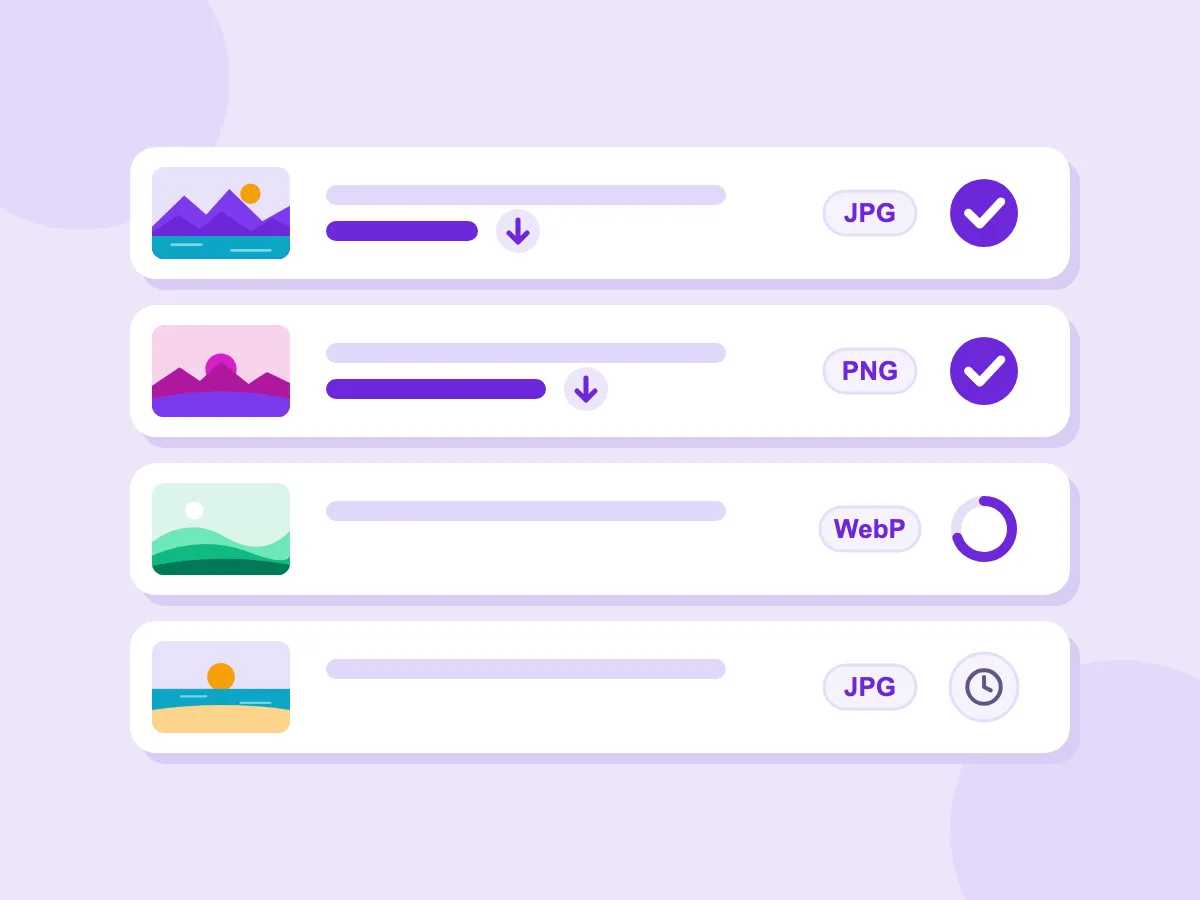
Status and Savings for Every File
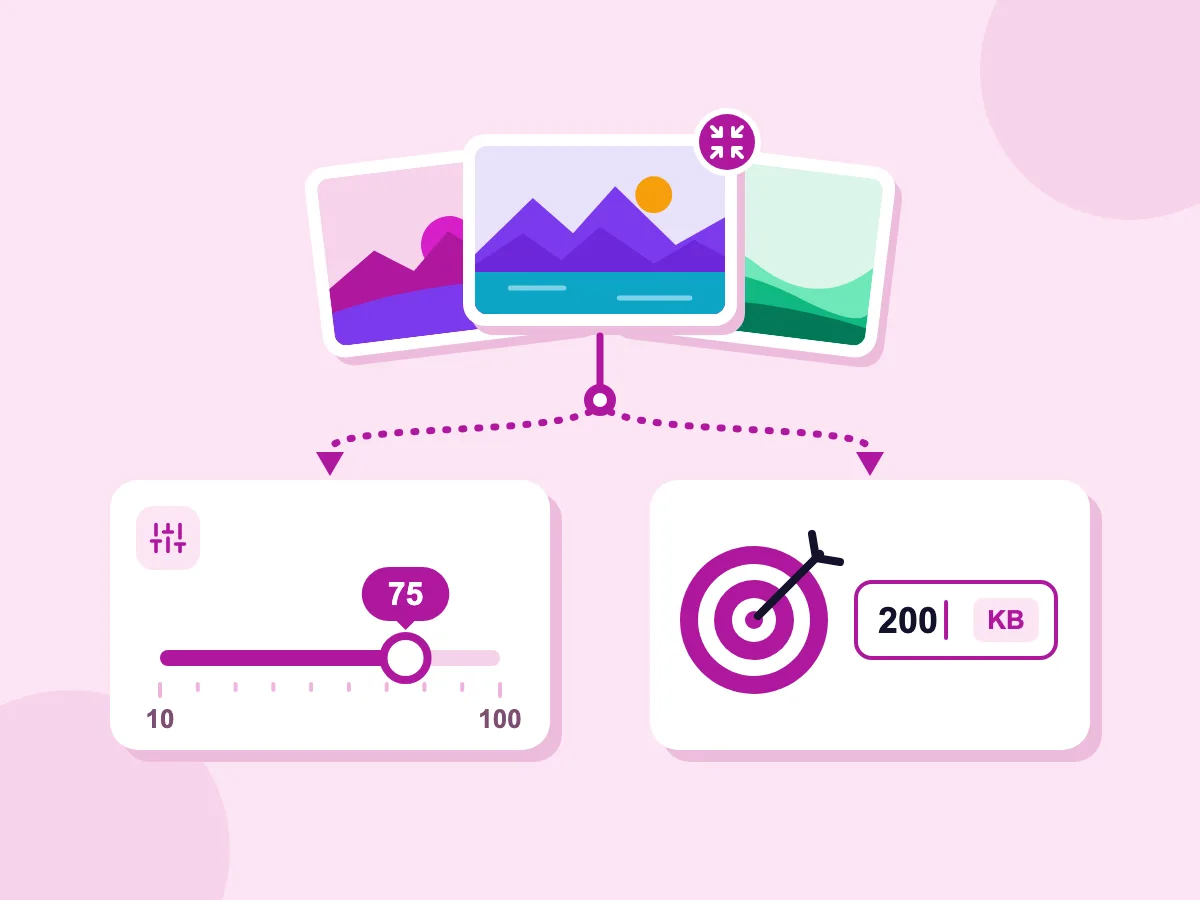
Quality Slider or Target KB Size
- Compress a Whole Batch in One Run
- Files Stay on Your Device
- Download All as One ZIP
- JPG, PNG, WebP, GIF and BMP
- No Account and No Watermark
Bulk Image Compression for Real Batch Jobs
Website Migration and Blogs
- Shrink a whole media library before you move it to a new site
- Keep the original file names by clearing the filename suffix
- Cap every blog image at 1920 px with Max dimension
- Save a folder of PNG screenshots as WebP in one pass
Product Catalogs
- Aim every product photo at the same KB target
- Fill transparent PNG backgrounds with white when saving as JPG
- Check each file's new size before you upload the catalog
- Retry only the files that failed, not the whole set
Event Photos and Sharing
- Shrink a full set of event photos to fit a shared drive
- Strip GPS location from a whole shoot before you share it
- Get a batch small enough to send in one email
- Compress animated GIFs and keep every frame
What Is a Bulk Image Compressor?
A bulk image compressor makes the file size of many images smaller in one run, using the same settings for every file. You add a batch, press Compress once and download the results together. Compressing a single image lets you tune each file by hand; a bulk compressor trades that for speed and a matching result across the set.
How to Batch Compress a Large Set of Images
One set of settings covers every file, so a few choices up front decide how the whole batch turns out. These answers cover mixed formats, file names, failed files and common batch jobs.
Can You Compress Different Formats in One Batch?
Yes. JPG, PNG, WebP, BMP and GIF files can share one batch. What comes out depends on the Save image as setting:
- Original: each file keeps its own format, so JPGs stay JPG and PNGs stay PNG.
- One format, such as WebP: every file is converted to it. Animated GIFs keep their frames as WebP.
- JPG: see-through areas are filled with the Background color, white by default. Animated GIFs keep only one frame.
How Are Compressed Files Named?
Each file keeps its name plus the suffix _compressed, so photo.jpg becomes photo_compressed.jpg. You can change or clear the suffix under Advanced. Two or more files download as picssizer_compressed.zip. If two files end up with the same name, the second one gets (1) added, so nothing is overwritten.
What Happens if One File Fails?
The rest of the batch keeps going, and the failed row shows ERROR. Press Compress again to retry only the files that failed or never ran. Download all leaves failed files out and tells you how many it skipped. If you change a setting after a run, the next Compress redoes the whole batch.
Which Settings Suit Common Batch Jobs?
Start from these, then open the compare view on two or three files before you download:
- Website migration: keep Save image as on Original and clear the filename suffix, so files keep their old names. Upper-case extensions such as .JPG usually come out lower-case.
- Product catalog: type one Target file size, such as 200 KB, so every photo aims for the same cap. Save as JPG or WebP so PNGs follow the cap too.
- Event photos: set Max dimension to 1920 px and leave Strip metadata on to drop GPS location.
- Exact pixel sizes for a whole set: use the bulk image resizer instead.
More Free Bulk Image Tools
Every tool is free and private: your files stay on your device, no account needed.
Image Compressor
Compress a single JPG, PNG, or WebP image with precise quality control.
Bulk Image Resizer
Resize many images to one width, an exact size or a percentage in one batch.
Bulk Image Converter
Convert many images between JPG, PNG, WebP, AVIF and more at once.
Bulk EXIF Stripper
Remove GPS, camera, and author metadata from multiple images in one batch.
Bulk Image Compressor — Frequently Asked Questions
Answers to common questions about compressing multiple images at once online
How do I compress multiple images at once?
Drop all your images, or a folder of them, on the upload box above. In the editor, set the quality or a target size once and press Compress. The files run one after another, and the button shows how many are done. When the batch finishes, press Download all to save every file in one ZIP.
What image formats can I compress in bulk?
You can add JPG, JPEG, PNG, WebP, BMP and GIF files and mix them in one batch. You can keep each file's own format or save the whole batch as JPG, PNG, WebP, BMP or GIF. Animated GIFs keep their animation when saved as GIF or WebP, and animated WebP files keep it when saved as WebP. iPhone HEIC photos need to be converted to JPG first.
Does bulk compression reduce image quality?
It depends on the settings you pick for the batch. Lossless PNG keeps every pixel exact. JPG and WebP drop some fine detail, and the default quality of 75 suits most web images. Because one setting covers every file, open the compare view on a few different images before you download. The image compressor page explains lossy and lossless compression in more detail.
How many images can I compress at once?
There is no set limit on the number of files or on their size. Your own device does the work, one file at a time, so a big batch uses more memory and takes longer. On a phone or an older laptop, split a very large set into smaller batches. Keep the tab open until the batch finishes.
Is it safe to use a bulk image compressor?
Yes. This one keeps your files on your device. Images are compressed in your browser and are never sent to a server or stored by us. You can check it in your browser's developer tools: the Network tab shows no file upload while a batch runs. That makes it a good fit for client shoots and unreleased product photos.
How do I bulk compress images on Windows or Mac?
Open this page in a modern browser such as Chrome, Edge, Safari or Firefox. Drag a folder from File Explorer or Finder onto the upload box, and the supported images inside it are added. There is nothing to install, and the same steps work on Linux and Chromebooks.
How do I compress multiple photos to email?
Add the photos, set Resize mode to Max dimension at 1600 px or Percentage at 50%, and save as JPG. The bar above the list shows the batch's total size before and after, so you can check it fits your email's attachment limit. Then press Download all and attach the ZIP.
Can I compress multiple images to 100 KB each?
Yes. Type 100 in Target file size and pick KB. Each file aims for 100 KB on its own, so it is not a total for the whole batch. The tool lowers the quality step by step, then the width and height if needed. GIFs lower their quality and colors instead. Lossless PNG files, animated WebP files and GIFs saved as WebP ignore the target, so turn Lossless PNG off or save as JPG or WebP. A file that can't reach the target comes out as small as the tool could make it.