Free Online JPEG Compressor
Compress JPG and JPEG photos by quality slider or exact target size in KB. Strip EXIF data and create progressive JPEGs with 100% private processing.
Drop your image here
- JPG
- JPEG
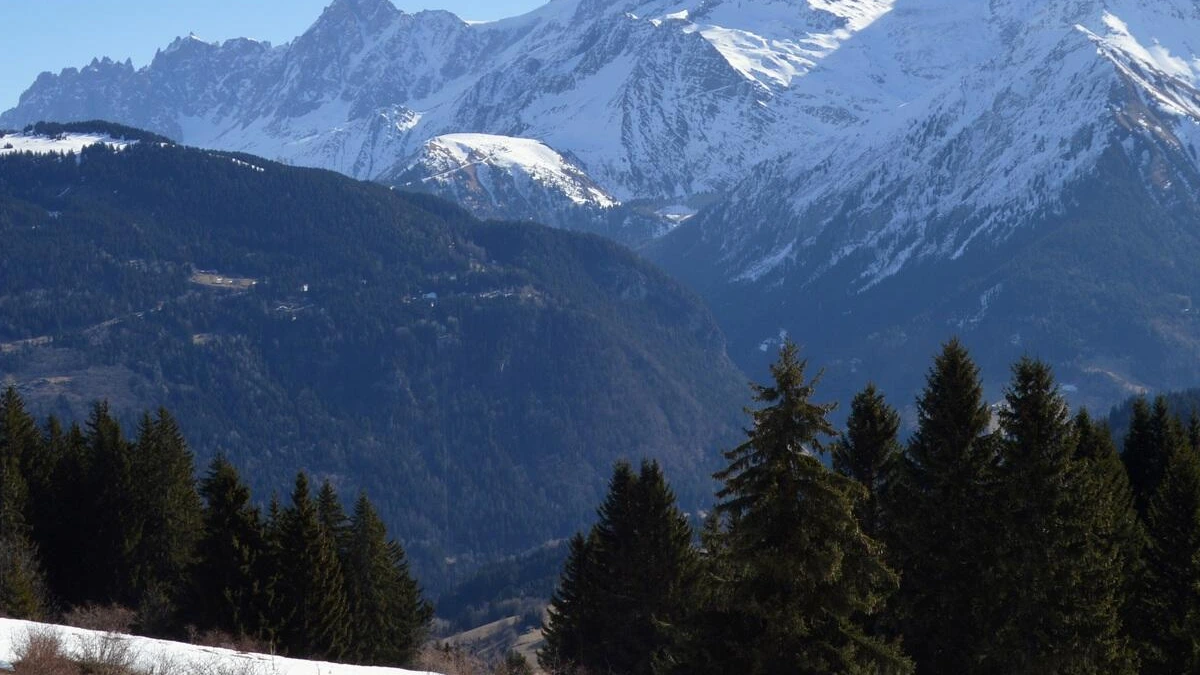
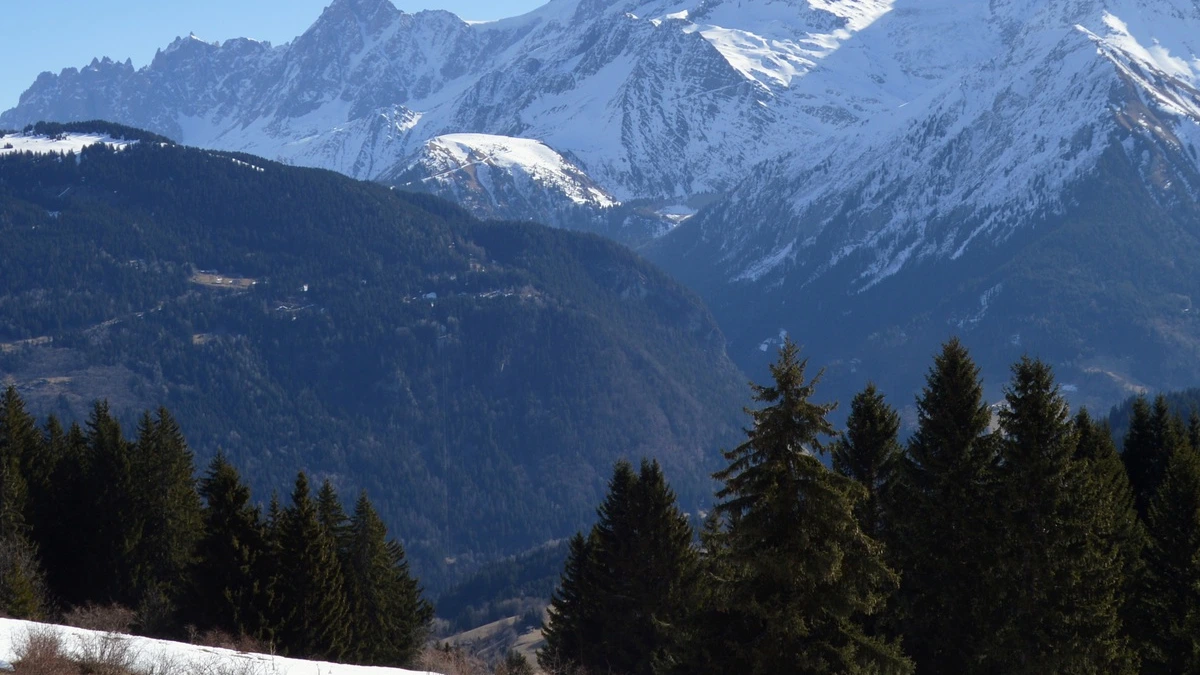
921 KB → 376 KB
File size, 59% smaller
2400×1435 px
Same width and height
JPG
Same format
100% private. Nothing is uploaded.
Compress JPEG Example: Before and After
How to Compress a JPEG Online
Add Your JPG Files
Drop JPG or JPEG files on the upload box, or browse for them. Add one photo or a whole batch.
Set Quality or a Target Size
Move the Quality slider from 10 to 100. It starts at 75. Or type a Target file size in KB or MB. Progressive JPEG and Strip metadata sit under Advanced.
Download the Smaller JPEGs
Press Compress and check the percentage saved on each row. One file downloads on its own, and a batch downloads as one ZIP.
Reduce JPEG File Size for Free
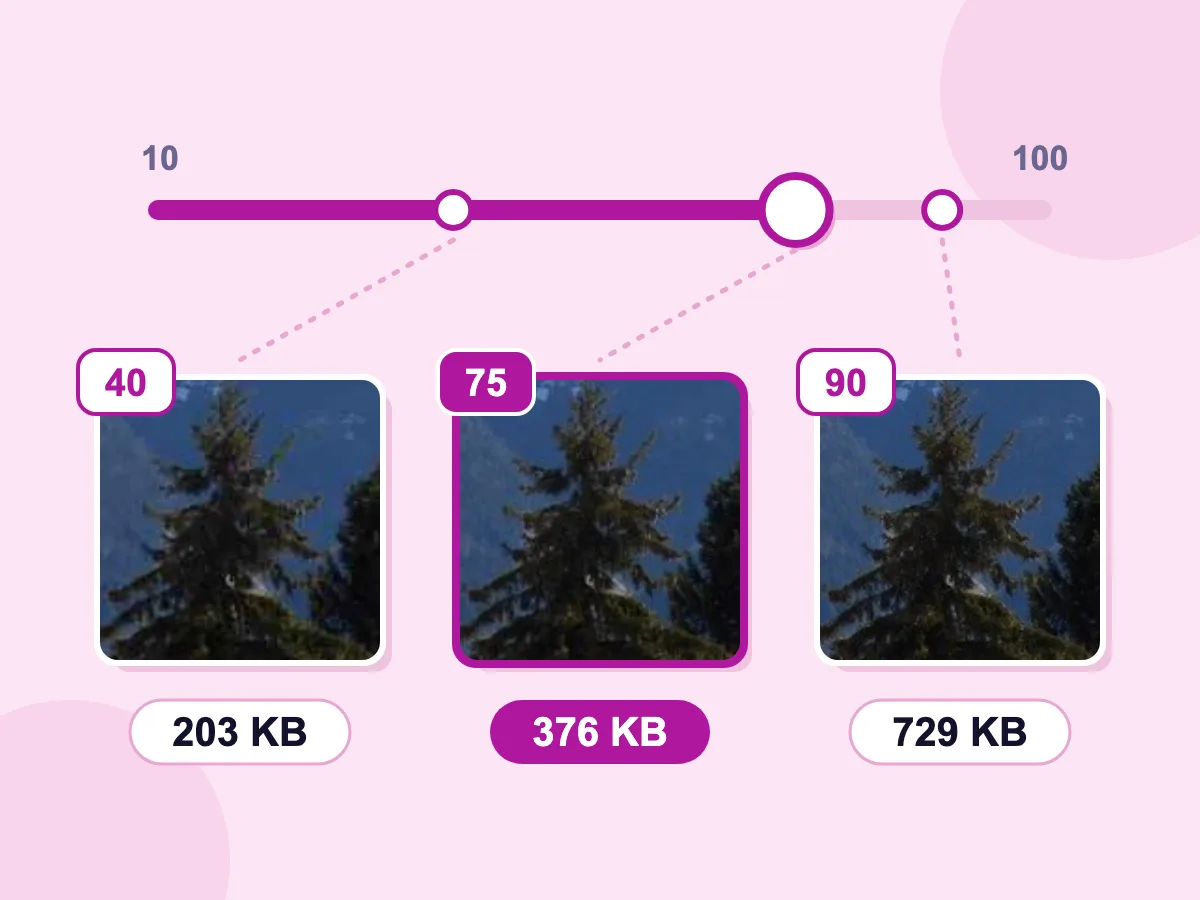
Quality Slider From 10 to 100
The Quality slider starts at 75. A lower number makes a smaller file with more visible blocks, and a higher one keeps more detail. Our 921 KB mountain photo came out at 203 KB at 40, 376 KB at 75 and 729 KB at 90.
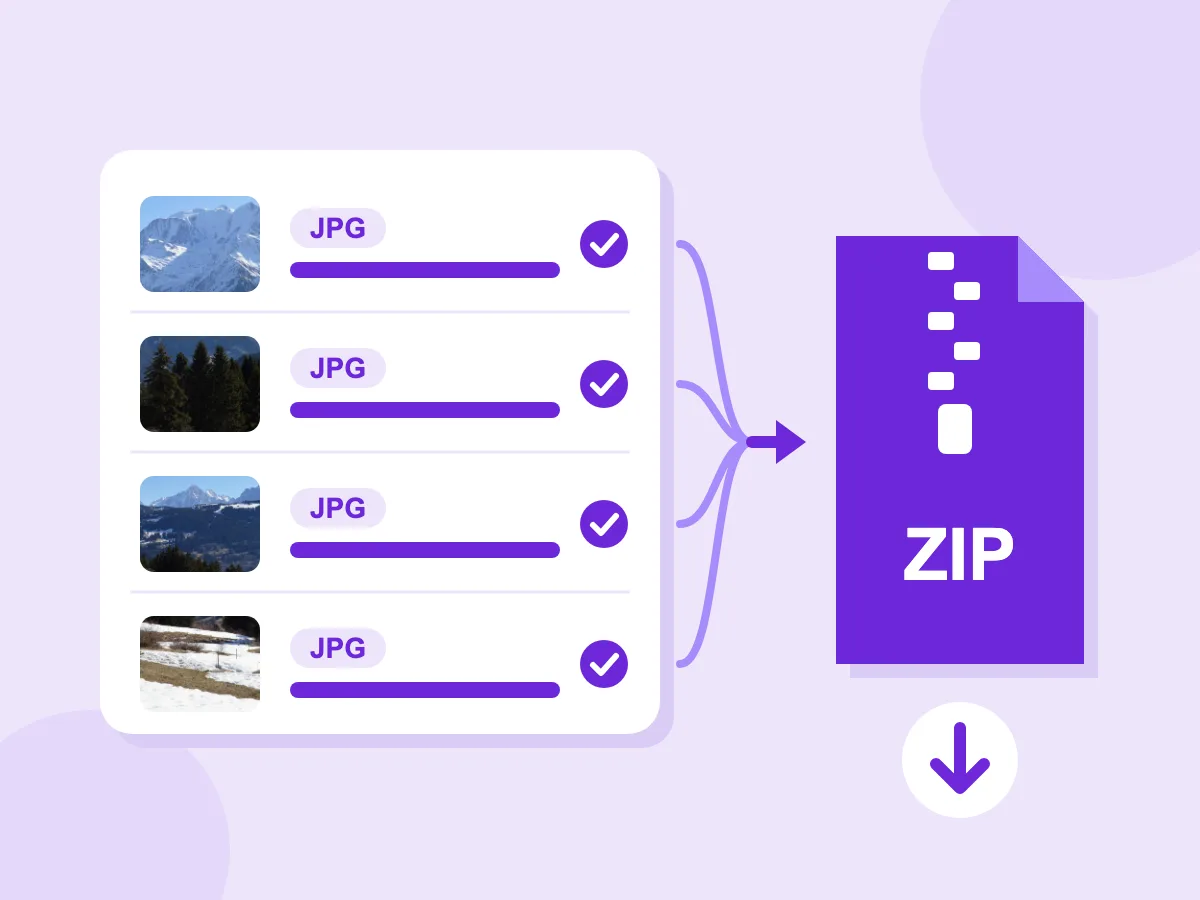
Batch Compress to One ZIP
Add as many JPGs as you like, then press Compress once. Every file gets the same settings, and each row shows how much it saved. Download all saves the whole batch as one ZIP.
- Compress to a Target KB or MB
- Progressive or Baseline JPEG
- Strip EXIF and GPS Data
- Files Stay on Your Device
- Free, No Signup, No Watermark
What People Compress JPEGs For
Websites and Blogs
- Shrink large camera photos before you add them to a page
- Cap the longest side with Max dimension, such as 1600 px
- Save progressive JPEGs that show the whole photo early
- Save photos as WebP when your site supports it
Email, Forms and Sharing
- Fit a photo or scan under a 100KB or 200KB upload limit
- Make holiday photos small enough to attach to an email
- Remove the GPS location before you post a photo
- Compress a whole folder of photos into one ZIP
Shops and Listings
- Bring every product photo under the same size target
- Lower the quality without changing the width and height
- Keep originals safe with a _compressed filename suffix
- Check each photo in the compare view before you upload
What Is JPEG Compression?
JPEG compression is a lossy way to store photos in a smaller file. It splits the picture into small 8×8 pixel blocks and keeps less fine detail in each one. A quality number sets how much detail stays. PNG compression is different: it is lossless, so it keeps every pixel but makes much bigger photo files.
How to Compress a JPEG Without Losing Quality
Every JPEG save drops some detail, so the goal is to drop only what nobody will notice. These answers cover the quality number, saving again, progressive files and photo data.
What JPEG Quality Setting Should You Use?
The Quality slider runs from 10 to 100 and starts at 75. Higher numbers keep more detail and make bigger files. Pick a range by where the photo will go:
- 90 to 100: photos you will edit, print or keep as a master copy. The file stays large.
- 75 to 85: websites, shops and social posts. Small changes may show when you zoom in.
- 50 to 70: thumbnails and previews. Check skies and skin for blocky patches.
- Below 50: only when you must fit a strict size limit.
Does Saving a JPEG Again Lower Its Quality?
Yes. Every lossy save drops a little more detail, and the losses add up. Start from the original camera or phone file and compress it once. A higher quality number can't bring lost detail back: if the new JPEG would be bigger than yours and no target size is set, you get your original file back.
Progressive or Baseline JPEG: Which Should You Pick?
Progressive suits most web photos, and it is on by default under Advanced. A baseline JPEG loads from top to bottom, while a progressive one shows a blurry full photo first, then sharpens it. The file size stays about the same. Turn Progressive JPEG off if an older program or device won't open the file.
Should You Remove EXIF Data From a JPEG?
Remove it from photos you share, and keep it when someone needs the details. Strip metadata, on by default under Advanced, removes EXIF data such as the camera model and date, plus the GPS location and color profile. Turn it off for print work, or for photos saved in a wide color space, so the colors don't shift.
More Free Image Tools
Explore our full suite of browser-based image tools
JPEG Compressor FAQ
Answers about JPEG quality, file size, settings and what the output looks like.
What is a JPEG compressor and how does it work?
A JPEG compressor saves your photo again as a smaller JPEG. It keeps less fine detail, based on the quality you pick, and leaves the width and height as they are unless you resize or a target size needs it. This one lets you set a quality from 10 to 100 or a target size in KB or MB. It can also save progressive JPEGs and remove EXIF data.
How do I compress a JPEG?
Compressing a JPEG takes three steps. First, drop your JPG or JPEG files on the upload box, or browse for them. Next, set the Quality slider, or type a Target file size in KB or MB. Then press Compress, check the new size and download. One file saves on its own, and two or more save as one ZIP file.
How does JPEG compression affect image quality?
It removes fine detail, and the quality number decides how much. At 85 and above, most photos look the same as the original on screen. Lower numbers can show blocky squares, smeared edges and halos around text, called compression artifacts. Open the compare view to check before you download, and raise the quality if you see them.
Is there a file size limit for JPEG compression?
No. There is no cap on file size and no limit on the number of photos. The work runs on your own phone or computer, so a very large camera file or a long batch takes longer and uses more memory on older devices.
How much can a JPEG be compressed?
It depends on how the photo was saved before. A camera or phone JPEG saved at high quality often shrinks a lot at quality 75. A JPEG that was already compressed shrinks very little, since quality alone can only go so far. For a much smaller file, also lower the width and height with Max dimension or Percentage. Each row shows your real saving.
Is PicsSizer's JPEG Compressor free to use?
Yes. There is no account, no watermark and no limit on how many JPEGs you compress. Every setting is included: quality, target size, resize, output format, progressive JPEG, metadata removal and the filename suffix.
How do I compress a JPEG to 100KB?
Type 100 in Target file size and pick KB. A phone or camera JPEG usually gets there by lowering quality alone. If not, the width and height shrink a little at a time until it fits. You can also compress an image to 100KB on a page with the target already set.
Is JPEG lossy or lossless?
Standard JPEG is lossy, so every save drops some detail. A lossless JPEG mode exists, but few programs open it, and this tool saves standard JPEG. If you need an exact copy of the pixels, set Save image as to PNG. PNG is lossless, but it makes a photo much bigger.
Can I compress multiple JPEG images at once?
Yes. Drop in a whole set of photos, such as a holiday album or a product shoot, and one quality setting covers them all. That keeps every photo in the set looking alike. Each row shows its own saving, and two or more files download as picssizer_compressed.zip.
Is it safe to compress JPEG files here?
Yes. Your photos are compressed on your own device and never uploaded to a server, so nobody else sees them. Strip metadata is also on by default, so the new file leaves out the GPS location and camera details. That makes the tool a good fit for ID photos, client work and family pictures.
Is PNG better quality than JPEG?
PNG keeps every pixel, but saving a JPEG as PNG can't bring back detail the JPEG already lost. It only makes the file much bigger. For photos, JPEG or WebP gives a far smaller file that looks close to the original. For logos, screenshots and text, PNG keeps edges sharp, so use the PNG compressor for those.
How do I know if my JPEG is compressed enough?
Check the size and the look. Each row shows the new size and the percentage saved. Open the compare view to see the original and the compressed photo side by side. If it looks fine but is still too big, lower the quality or set a target size, then compress again.