Free Online Image Compressor
Compress JPG, PNG, WebP, GIF and BMP images by quality or to an exact target size in KB or MB. 100% private on-device processing with no uploads.
Drop your image here
- JPG
- JPEG
- PNG
- WEBP
- +2
1.1 MB → 559 KB
File size, 48% smaller
2000×1330 px
Same width and height
JPG
Same format
100% private. Nothing is uploaded.
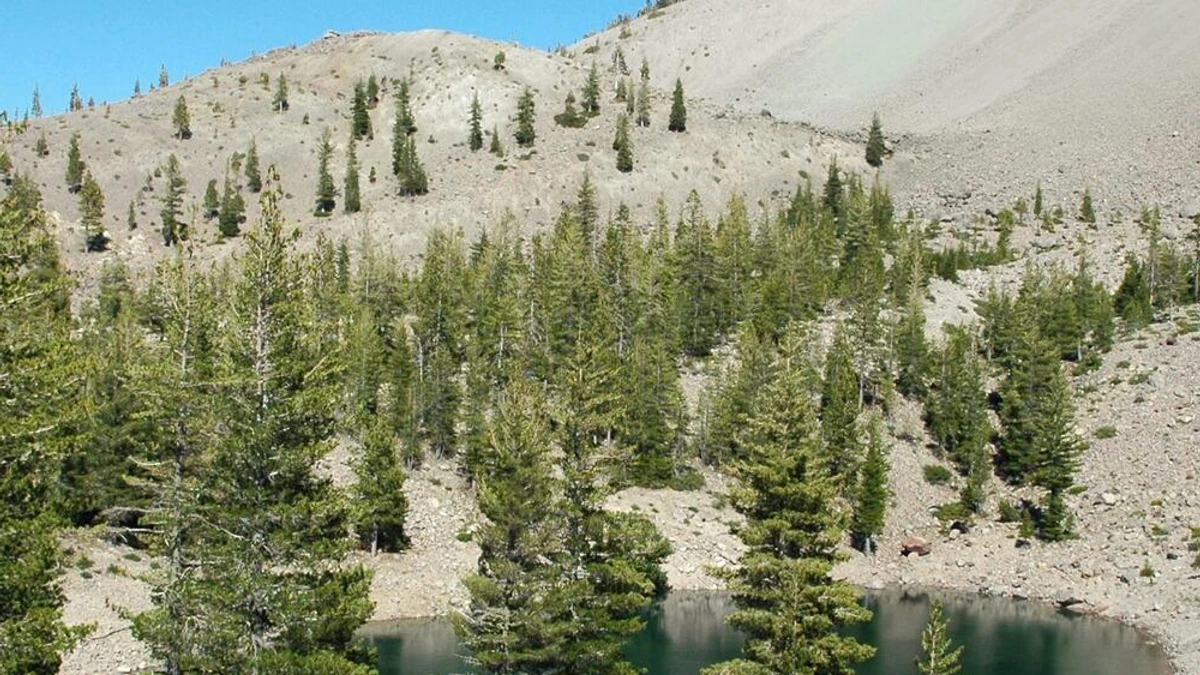
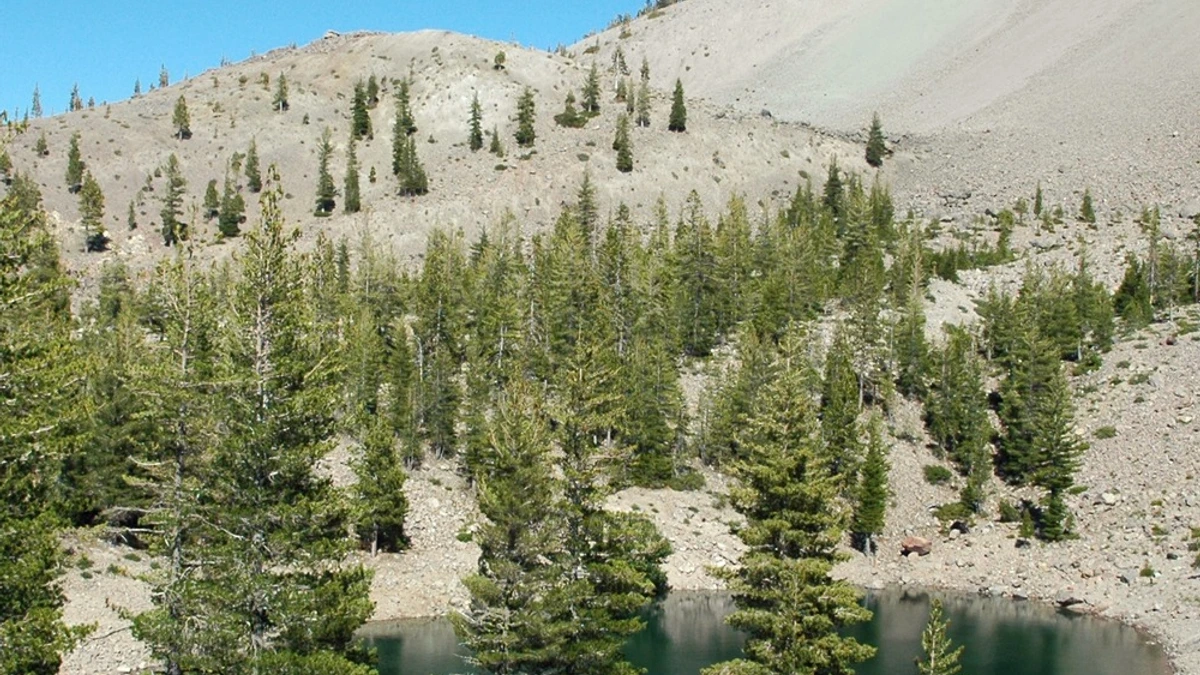
Compress Image Example: Before and After
How the Image Compressor Works
Add Your Images
Drag and drop your files or pick them from your device. The compressor accepts JPG, JPEG, PNG, WebP, BMP and GIF, either one file or a batch.
Set Quality or a Target Size
Move the quality slider between 10 and 100, or type a target file size in KB or MB. You can also resize, pick an output format, strip EXIF data, and choose a background color for transparent areas.
Download the Smaller File
Each file shows its old size, new size, and the percentage saved. Open the side by side preview to compare, then download. One file saves on its own and a batch saves as a single ZIP.
Every Way to Reduce Image Size
Compress to a Target KB or MB Size
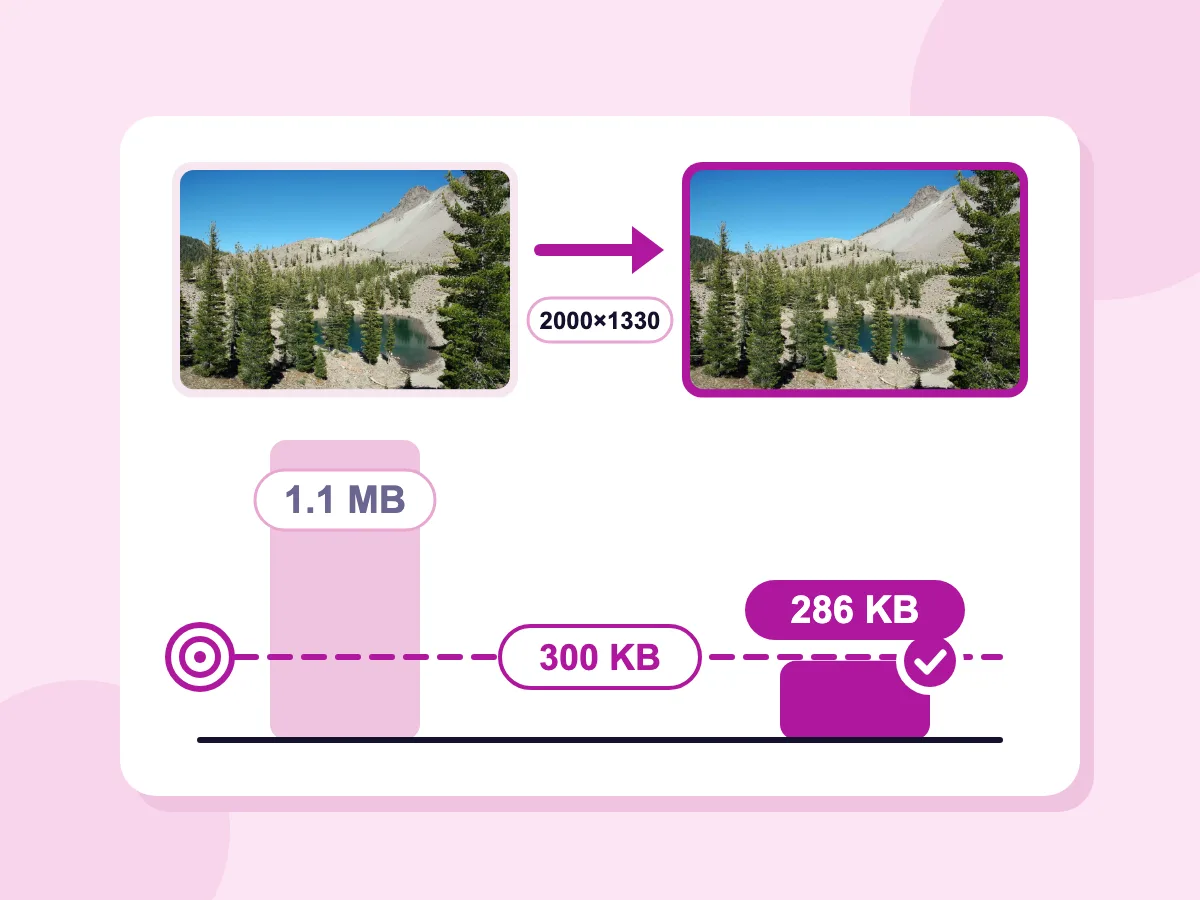
Type a number in Target file size, pick KB or MB, then press Compress. Quality steps down first, and if that is not enough, the width and height shrink too. Our 1.1 MB lake photo came out at 286 KB with a 300 KB target, still 2000×1330.
JPG, PNG, WebP, GIF and BMP
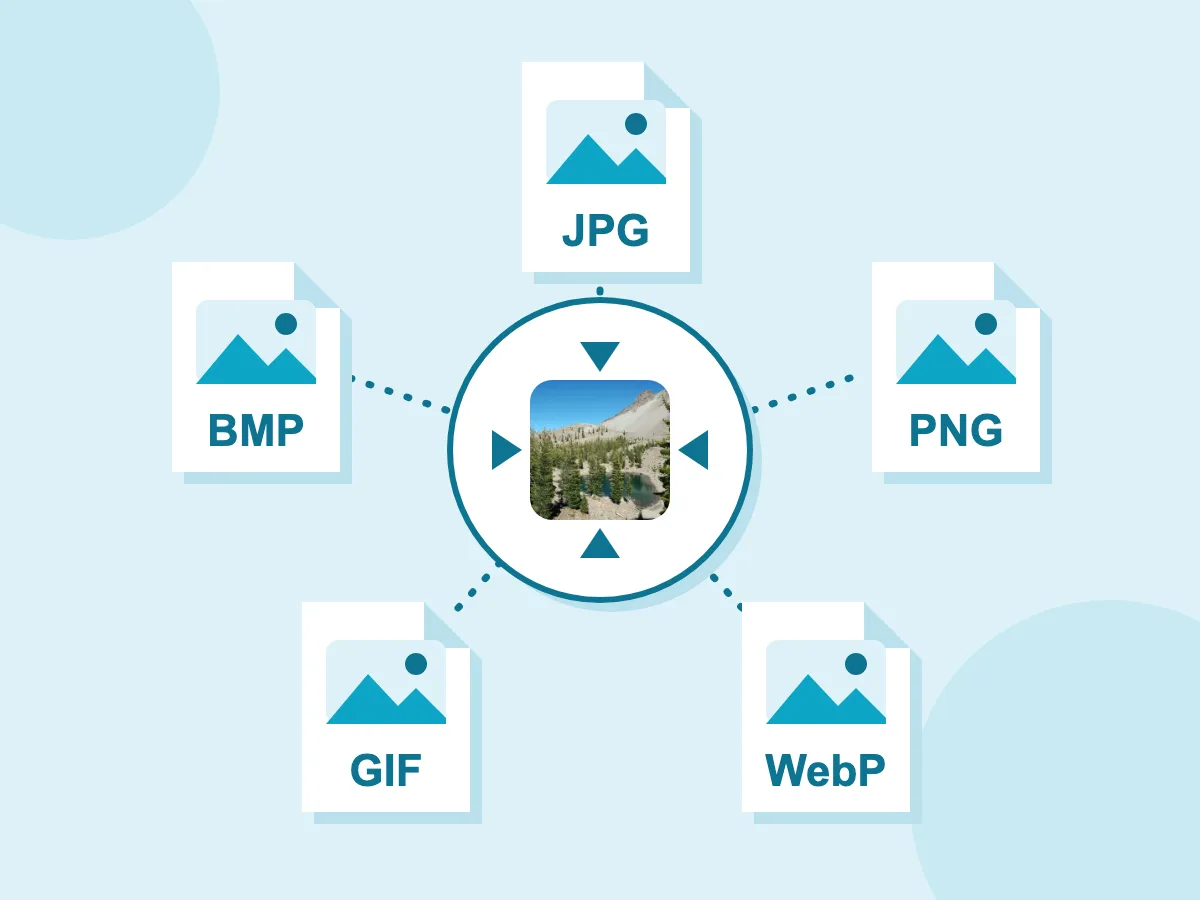
Add JPG, PNG, WebP, GIF or BMP files, even mixed in one batch. Each file keeps its own format unless you change Save image as. Pick JPG, PNG, BMP, WebP or GIF there to convert while you compress.
- Resize by Max Dimension or Percentage
- Quality Slider From 10 to 100
- Strip EXIF, GPS and Timestamps
- Background Color for Transparent PNGs
- Progressive JPEG Output
- Files Stay Private on Your Device
- No Uploads and No Signup
What People Compress Images For
Website Speed
- Cap hero images at 1920px on the longest side
- Get blog photos under 200KB for faster pages
- Convert PNG screenshots to WebP for smaller files
- Improve Largest Contentful Paint on image-heavy pages
Social Media and Uploads
- Scale photos down to 1080px for feed posts
- Meet a 100KB or 1MB limit on an upload form
- Save a transparent PNG as JPG on a white background
- Remove GPS location data before you share a photo
Product Photos
- Compress product shots to a fixed KB size
- Batch compress a full catalog into one ZIP file
- Convert PNG product images to WebP or JPG
- Add a _compressed suffix so originals stay untouched
What Is Image Compression?
Image compression makes an image file smaller in KB or MB by storing its pixels more efficiently. Lossless compression keeps every pixel exactly the same. Lossy compression drops fine detail that is hard to see, for a much smaller file. Resizing is different: it changes the width and height in pixels, while compression can keep them as they are.
How to Reduce Image Size Without Losing Quality
A smaller file comes from three choices: the type of compression, the format you save as and the size in pixels. The answers below help you pick each one so the picture still looks right.
Lossy or Lossless: Which Should You Use?
Lossless compression keeps every pixel the same, so nothing is lost, but the file shrinks less. Lossy compression drops detail that is hard to see and makes a much smaller file. Each format works a little differently here:
- JPG and WebP: lossy. Set the quality from 10 to 100. Higher numbers keep more detail and make bigger files.
- PNG: lossless by default. Turn off Lossless PNG to cut the colors to as few as 2 for a much smaller file.
- GIF: set the number of colors from 2 to 256. Fewer colors make a smaller file.
Which Image Format Makes the Smallest File?
It depends on what is in the picture. Pick the format under Save image as:
- Photos: WebP or JPG. A photo saved as PNG is usually much bigger than the same photo as JPG or WebP.
- Logos, icons and screenshots: PNG keeps sharp edges and see-through areas. WebP can keep see-through areas too.
- Animations: keep GIF and lower the colors, or save as WebP, which keeps the animation.
- BMP: no compression at all, so only use it when a program asks for it.
Can You Compress an Image Without Changing Its Dimensions?
Yes. Leave Resize on Original and only the file size changes. If the file is still too big, scale it down with Max dimension or Percentage: halving the width and height leaves a quarter of the pixels. For an exact width and height in pixels, use the image resizer.
How Should You Compress Images for a Website or Email?
A few settings cover most photos:
- Website: set Max dimension to 1920 px and save as WebP or JPG at quality 75 to 85.
- Email: set Percentage to 50% and save as JPG, which every email app can open.
- Upload forms with a size cap: type the limit in Target file size, or compress an image to 100KB with the target already set.
More Image Tools
Free browser-based tools for resizing, converting, and compressing
Image Resizer
Set exact pixel dimensions or scale by percentage.
JPEG Compressor
Compress JPG photos with quality and progressive controls.
PNG Compressor
Shrink PNG files with palette control and keep transparency.
Image Converter
Convert between JPG, PNG, WebP, BMP, GIF and more.
Compress to 100KB
Fit any photo under 100KB for forms and applications.
Compress to 200KB
Fit any photo under 200KB for web thumbnails and email.
Compress to 500KB
Fit any photo under 500KB for product and press images.
Compress to 1MB
Fit any photo under 1MB while keeping detail sharp.
Image Compressor FAQs
Answers about settings, supported formats, and what the output files look like
What is an image compressor and how does it work?
An image compressor saves an image again so the file takes up less space. Lossy compression, used by JPG and WebP, drops fine detail that is hard to see. Lossless compression, used by PNG, stores the same pixels in a smarter way. This tool lets you set a quality from 10 to 100, keep PNG lossless or cut its colors, or type a target size in KB or MB and let it work down to that size.
How do I compress an image to exactly 100KB or 1MB?
Type your number in Target file size in the Compression section and pick KB or MB. The compressor lowers the quality in up to 8 steps, checking the size each time. If that is not enough, it shrinks the width and height in up to 6 more steps. If the target still can't be reached, you get the smallest file it could make. For GIF, it lowers quality and colors instead of the size. Target size works with JPG, WebP and GIF, and with PNG once Lossless PNG is off. Animated WebP files ignore it. Common sizes like 100KB, 200KB, 500KB and 1MB also have their own pages with the target already set.
Which image formats does the image compressor support?
JPG, JPEG, PNG, WebP, BMP and GIF work as both input and output. JPG uses the quality slider from 10 to 100, plus a progressive option. PNG starts lossless, with an optional color limit from 2 to 256 and dithering. WebP uses the quality slider and can keep see-through areas and animation. GIF gets a color limit from 2 to 256. BMP output has no compression, so use it only when a program needs it. Leave Save image as on Original to keep the format, or pick another to compress and convert in one step.
Will compressing an image lower its quality?
It depends on the mode. Lossless PNG keeps every pixel the same, so there is no quality loss. JPG and WebP are lossy, but you choose how much. At quality 85 to 95, a photo usually looks the same as the original on screen. Below about 50, you may see blocky patches in smooth areas like skies and skin. Open the compare view to check the result before you download.
How much can I reduce my image file size?
It depends on the image, so each row shows your real saving as a percentage. The biggest drops come from saving a PNG photo as JPG or WebP, from lowering the width and height, and from cutting colors in PNG and GIF files. A file that is already well compressed may shrink very little. If Strip metadata is off, no target size is set, you kept the same format and the new file would be bigger, you get the original back instead.
Are my files uploaded to a server?
No. Your images are compressed on your own device. They are never sent to a server or stored by us. You can check this yourself: open your browser's developer tools, go to the Network tab and compress an image. You will see no file upload. That makes the tool a good fit for client photos, ID documents and unreleased product shots.
Can I compress multiple images at once?
Yes. Add several files and your settings for quality, target size, format, resize, metadata and filename suffix apply to all of them. Each file gets its own row with the old size, the new size and the percentage saved. One file downloads on its own. Two or more download together as picssizer_compressed.zip, each name ending in _compressed unless you change it under Advanced. For long lists, the bulk image compressor gives you the same controls.
Is there a file size limit for compressing images?
There is no set limit on file size, and no limit on how many images you compress. Your own device does the work, so very large photos or big batches use more memory and can be slow on older phones. If a batch feels slow, split it into smaller groups.
Do I need an account to use the image compressor?
No. There is no signup, no email, no login, and no payment. Nothing is limited behind a plan. You get the full set of controls right away. That includes the quality slider, target file size, resize with four fit modes, and PNG and GIF palette settings. It also includes format conversion, a background color for transparent images, metadata stripping, progressive JPEG, and the filename suffix. Compressed files download without a watermark, and there is no limit on how many images you compress.
Which quality setting should I pick?
The quality slider runs from 10 to 100 and starts at 75, which suits most web images. For hero images and portfolio photos, try 85 to 90. For blog images and product thumbnails, 75 to 85 keeps files small with little visible change. For a photo that only needs to fit a size limit, skip the slider and use the target file size field instead, since the tool will find the quality level for you. For icons, logos, and screenshots, keep PNG lossless mode on, and only turn it off if you need a much smaller file. Compare a couple of settings in the preview before you commit to a batch.
Can I resize an image while compressing it?
Yes. The Resize section has three modes. Original keeps the width and height. Max dimension caps the longest side at a pixel value, 1920 px by default, and leaves smaller images as they are. Percentage scales down by any value from 1% to 100%. When resizing is on, you also pick a fit mode: Fit keeps the shape, Contain adds bars to fill the box, Cover fills the box and trims the edges, and Stretch ignores the shape. Combining a smaller size with a target file size gives you the biggest drop.
Will a transparent PNG lose transparency when I save it as JPG?
JPG cannot store transparency, so the transparent pixels have to be filled with something. When you set the output format to JPG, a Background color picker appears in the Compression section. White is the default, and you can type any hex code or pick a preset. Transparent areas come out in that color and the rest of the image is unchanged. If you need transparency in the output, choose PNG or WebP instead, since both keep the alpha channel intact.
Does the image compressor remove EXIF and GPS data from photos?
Yes. Strip metadata sits under Advanced and is on by default, so EXIF fields are removed as the file is compressed. That covers GPS coordinates, camera make and model, lens details, and the capture date and time. It also removes the embedded color profile, which is why the file ends up slightly smaller. Turn the toggle off when you need that data kept, for example when a client needs the shooting details or a print workflow depends on the color profile. Nothing is added back later, so the downloaded file matches exactly what the toggle says.
Can I compress an animated GIF and keep the animation?
Yes, in two ways. Keep Save image as on GIF or Original and lower the GIF colors, from 2 to 256. Fewer colors make a smaller file, and every frame stays. Or save as WebP, which keeps the animation and often makes a smaller file than GIF. Saving as JPG, PNG or BMP keeps only one frame, and the settings panel shows a warning when you pick one of those.
How do I compress an image on my phone?
Open this page in your phone's browser, tap to choose a photo, and the same editor opens. Set a quality or a target size, press Compress, then download. It works the same on iPhone and Android, with no app to install. The compressor takes JPG, PNG, WebP, BMP and GIF files, so convert an iPhone HEIC photo to JPG first.