Free Online Image Converter (Single & Batch)
Convert between 27 input formats and 20 output formats, resize as you convert, and download instantly. 100% private with no server uploads.
Drop your image here
- JPG
- JPEG
- PNG
- WEBP
- +23
100% private. Nothing is uploaded.
How the Image Converter Works
Add Your Files
Drag your images onto the box or pick them from your device. The converter reads 27 formats, including HEIC, RAW files from Canon, Adobe and Fujifilm, plus PSD, TIFF, SVG and JPEG XL.
Pick a Format and Settings
Search the format list and choose your output. Then set quality, turn on resize, pick a background color for transparent areas, or give one file its own output format.
Convert and Download
Each row shows the new file size and the percentage saved, with a preview that compares the original and the result. One file downloads on its own and a batch downloads as a single ZIP.
Key features
A Different Format Per File
Resize While You Convert
- 27 Input and 20 Output Formats
- Files Stay on Your Device
- Quality Slider From 10 to 100
- Keeps GIF and WebP Animation
- Pick the Fill Color for Transparency
- Strips EXIF, IPTC and GPS
- Batch Convert to One ZIP
- No Signup and No Watermark
What People Convert Images For
Websites and Apps
- Turn PNG exports into WebP to cut page weight
- Convert photos to AVIF, which is often smaller than WebP
- Swap an animated GIF for a smaller animated WebP
- Resize to 1920px and convert in the same pass
Phones and Cameras
- Convert iPhone HEIC photos to JPG or PNG
- Export Canon CR3, Adobe DNG and Fujifilm RAF files to JPG
- Remove GPS location data while converting a photo
- Make HEIF files open on Windows and older software
Design and Print
- Flatten Photoshop PSD and PSB files to PNG or JPG
- Convert TIFF masters to web-ready JPG
- Save HDR and EXR renders as viewable images
- Export to EPS, TGA or SGI for older pipelines
What Is an Image Converter?
An image converter is a tool that changes a picture from one file format to another, such as HEIC to JPG or PNG to WebP. It reads the pixels and saves them again under the new format's rules. Compressing is different: it keeps the same format and only makes the file smaller.
Convert an Image Without Losing Quality
Every conversion saves the picture again under the new format's rules, so the format you pick decides how much detail and file size you keep. These answers help you choose.
Can You Convert to JPG Without Losing Quality?
Not completely, because JPG always throws away some fine detail when it saves. At the default quality of 90, the loss is hard to see on screen. Start from the original file, and don't convert the same picture to JPG again and again. When nothing may be lost, convert to PNG or TIFF instead.
How Do I Convert an Image to PNG With a Transparent Background?
Converting to PNG keeps any transparency the image already has, but it doesn't remove a background. WebP, GIF and TIFF keep transparency too. A photo with a solid background needs a background remover first, then it can be saved as PNG.
How Do I Convert an Image to a Smaller File Size?
Pick a format that compresses well, then trim what you don't need:
- Convert photos to WebP or AVIF instead of PNG or JPG.
- Lower the quality slider a little, for example from 90 to 80.
- Turn on Resize and set a smaller width. This cuts size the most.
- To hit an exact size in KB or MB, use the image compressor.
Can Converting Make a Low-Quality Image Sharper?
No. Converting only changes how the pixels are stored, so it can't add detail that isn't there. Saving a blurry JPG as PNG gives a bigger file that looks the same. To enlarge a small or soft picture, use the image upscaler.
More Ways to Convert and Edit
Free browser-based tools for converting, compressing, resizing and cropping images.
HEIC to JPG
Turn iPhone photos into JPG files that open anywhere.
PNG to WebP
Shrink PNG graphics for the web and keep transparency.
All Converters
Browse every format pair with settings ready to go.
Bulk Image Converter
Convert a large batch and download the results as a ZIP.
PDF to Image
Turn PDF pages into JPG or PNG files.
Image Compressor
Hit a target size in KB or MB without visible quality loss.
Image Resizer
Resize images to exact dimensions for web, social or print.
Image Cropper
Crop to the size and aspect ratio you need.
Image Converter FAQs
Answers about supported formats, settings, animation and what the output files look like.
Are my photos safe and private when using this converter?
Yes. Unlike standard online converters that upload your pictures to a remote server, PicsSizer processes every file directly inside your web browser. Your images never leave your device, nothing is stored online, and no one else can see them.
Which image formats can I convert between?
Input covers 27 formats: JPG, JPEG, PNG, WebP, AVIF, GIF, APNG, BMP, TIFF, SVG, HEIC, HEIF, PSD, PSB, JXL, JP2, J2K, J2C, HDR, EXR, PFM, PNM, PPM, SGI, and the RAW files CR3 from Canon, DNG from Adobe and RAF from Fujifilm. Output covers 20: JPG, JPEG, PNG, WebP, AVIF, GIF, TIFF, BMP, PSD, PSB, JXL, EPS, EXR, HDR, SVG, TGA, WBMP, PNM, PPM and SGI. Any supported pair works, so PNG to WebP, HEIC to JPG, PSD to PNG, TIFF to JPG and AVIF to PNG all run the same way. PDF is not supported here; the PDF to Image tool handles that. ICO is not in the list either, so use the ICO Converter for favicons.
How do I convert HEIC photos from my iPhone to JPG?
Drop the HEIC files onto the upload box, pick JPG from the format list, and convert. iPhones save HEIC by default, but Windows, older photo apps and many upload forms reject it. Quality starts at 90, and Strip metadata removes the photo's GPS location at the same time. A whole camera roll can go in at once and comes back as one ZIP.
How do I convert images to WebP?
Add your file, choose WebP from the format list, and set the quality slider. Quality 80 to 85 is a common choice for photos and usually gives a smaller file than a JPG that looks the same. WebP keeps transparency, so it also works for logos and screenshots. If your source is an animated GIF, WebP keeps the animation too.
Can I convert PNG to SVG?
Not into real vector shapes. SVG is in the output list, but the result wraps your pixels inside an SVG file instead of tracing them into editable paths, so it won't scale up cleanly. SVG works well as an input: it is drawn at 1440 pixels wide, or at the size you set under Resize, and saved in any output format.
Can I convert multiple images at once?
Yes. Add as many files as you want, and your format, quality, resize and metadata settings apply to all of them. Each row shows a progress bar, the new size and the percentage saved. Failed files get a reason and a retry button, and you can cancel a running batch. Two or more results download together as picssizer_converted.zip.
Can each file in a batch convert to a different format?
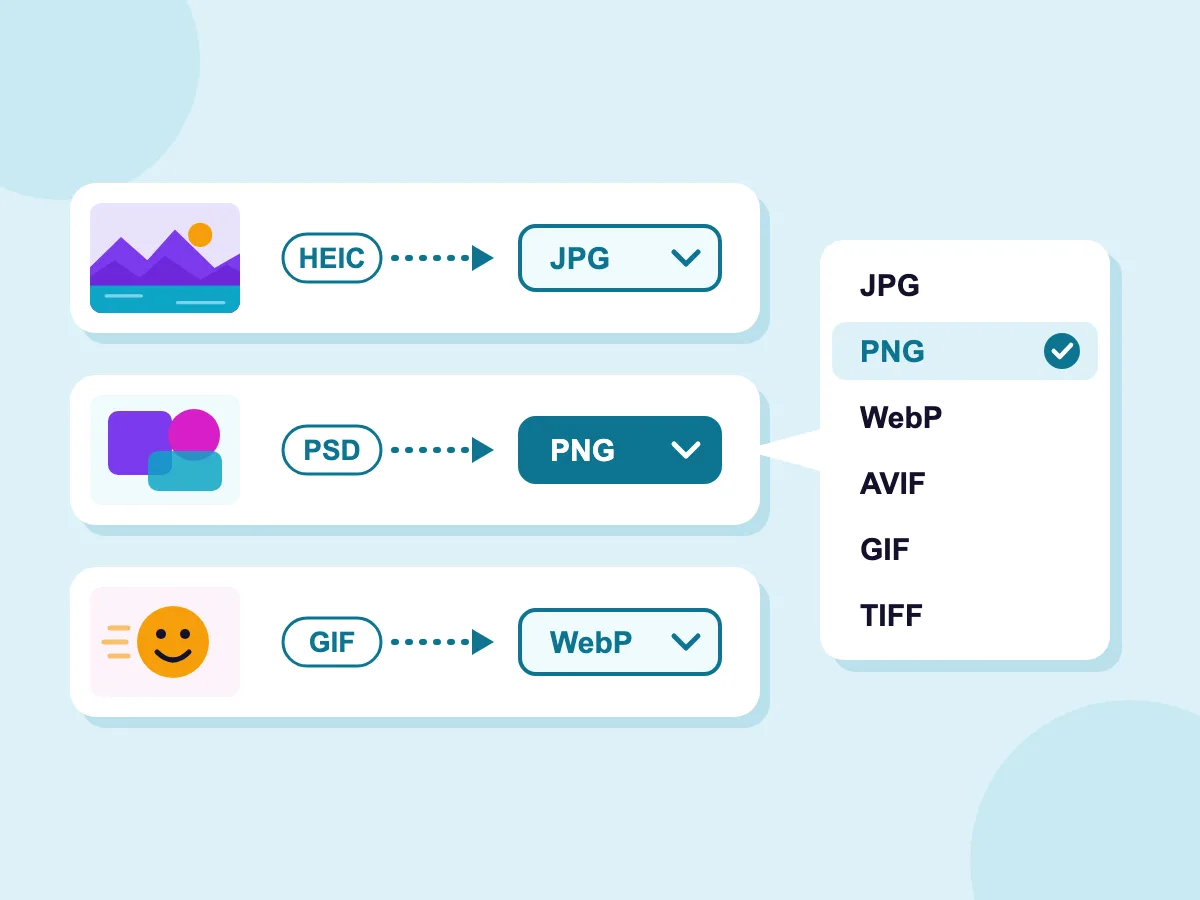
Yes. The settings panel sets the default format, but every row in the file list has its own dropdown with all 20 output formats. Change one row and it is marked as an override. That way screenshots can come out as PNG, photos as JPG or WebP, and an animated file as WebP, all in one run and one ZIP.
Will my animated GIF stay animated after converting?
It stays animated if you convert it to GIF or WebP, which keep the frames, timing and loop count. Every other format saves a single frame. As soon as an animated file is added, the editor shows a green note if all frames will be kept, or an amber warning with how many files will lose them. Animated PNG is the exception: its frames can't be read here, so the animation is lost whatever you pick.
How do I convert an image to JPG?
Add your image, leave the output format on JPG (it is the default) and press convert. Quality starts at 90, and you can lower it for a smaller file. If the image has a transparent background, the Transparent background panel lets you pick the color that fills it, with white as the default.
What is the best image format to convert to?
It depends on where the image is going. For photos on a website, WebP at quality 80 to 85 is a good default, and AVIF is often smaller still. Use PNG for logos and screenshots, JPG for files that must open anywhere, and WebP or GIF for animation. For print or archive copies, use TIFF, or PSD if the file goes back into Photoshop.
How do I keep image quality when I convert formats?
Convert to PNG or TIFF when every pixel has to stay exact. For JPG, WebP or AVIF, keep the quality slider at 85 or higher; it starts at 90. Convert from the original file, not from a copy that was already compressed, since each lossy save drops a little more detail. The preview lets you compare the original and the result with a slider or side by side, so you can check before you download.
Can I resize an image while converting it?
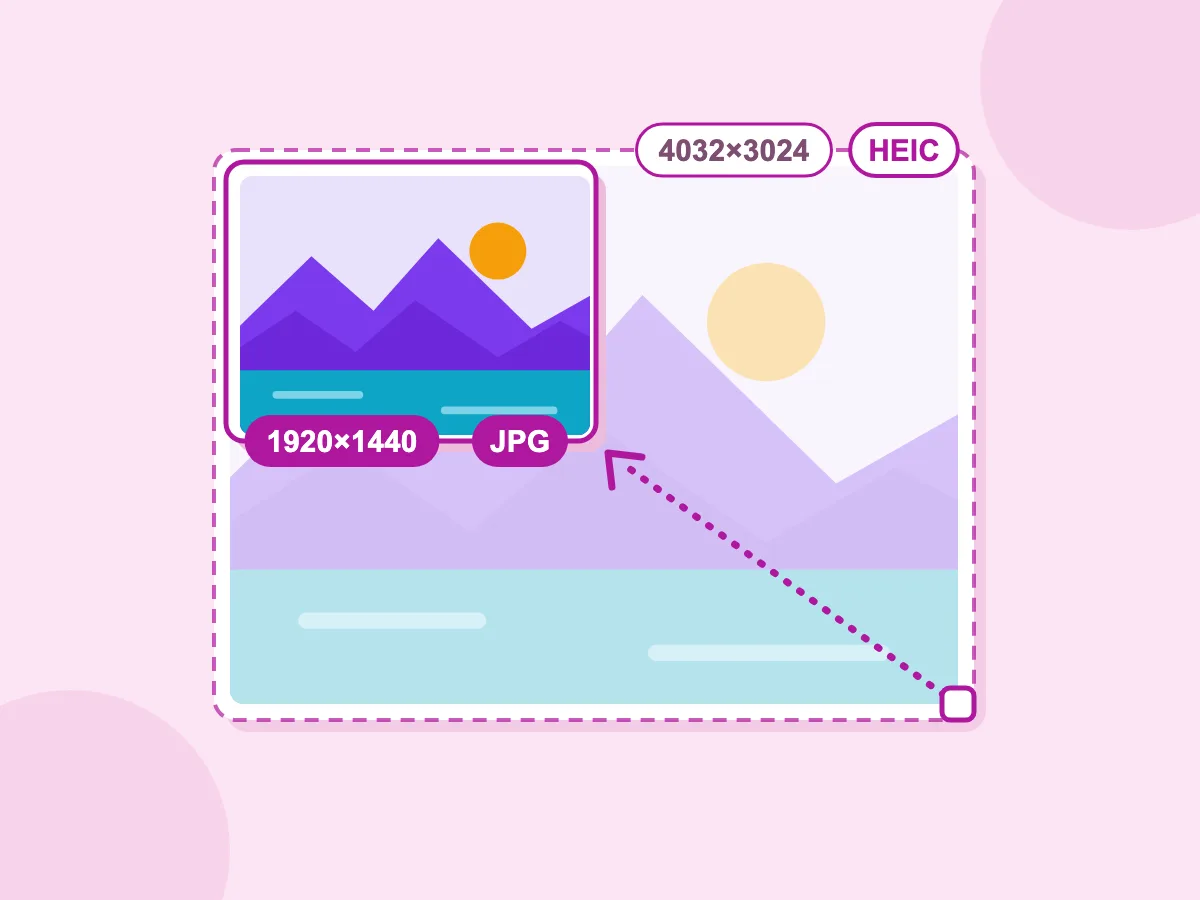
Yes. Open the Resize section, switch it on, and enter a width or a height. The aspect ratio lock is on by default, so the other side scales to match. Unlock it to set both and choose a fit mode: Fit, Contain (pads with a color), Cover (crops the overflow) or Stretch. Resizing happens in the same pass as the conversion, frame by frame for animations.
What happens to transparency when I convert PNG to JPG?
JPG can't store transparency, so transparent pixels have to be filled with a color. When you pick JPG, a Transparent background panel appears with a color picker and a hex field. White is the default. To keep the transparency instead, convert to PNG, WebP, GIF or TIFF.
Does the converter remove EXIF, IPTC and GPS data?
Yes, by default. Strip metadata in the Privacy section is on from the start. It removes GPS coordinates, camera make and model, and date taken, converts colors to standard sRGB, and strips the embedded color profile and IPTC fields. Switch it off when a client needs shooting details or a print job depends on an embedded Adobe RGB or Display P3 profile.
Is there a file size limit, and do I need an account?
There is no file size cap, no file count limit and no account, signup or payment. Because conversion runs on your device, very large RAW or PSD files depend on your device's memory, so split a huge batch into smaller groups. Any file that stalls is stopped after 120 seconds and gets a retry button, so it never blocks the rest. Output has no watermark.