Free Online OG Image Generator
Create 1200×630 Open Graph preview images for Facebook, LinkedIn, X, and Slack. Choose from 16 customizable templates and download as JPG or PNG.
100% private. Nothing is uploaded.
Key features
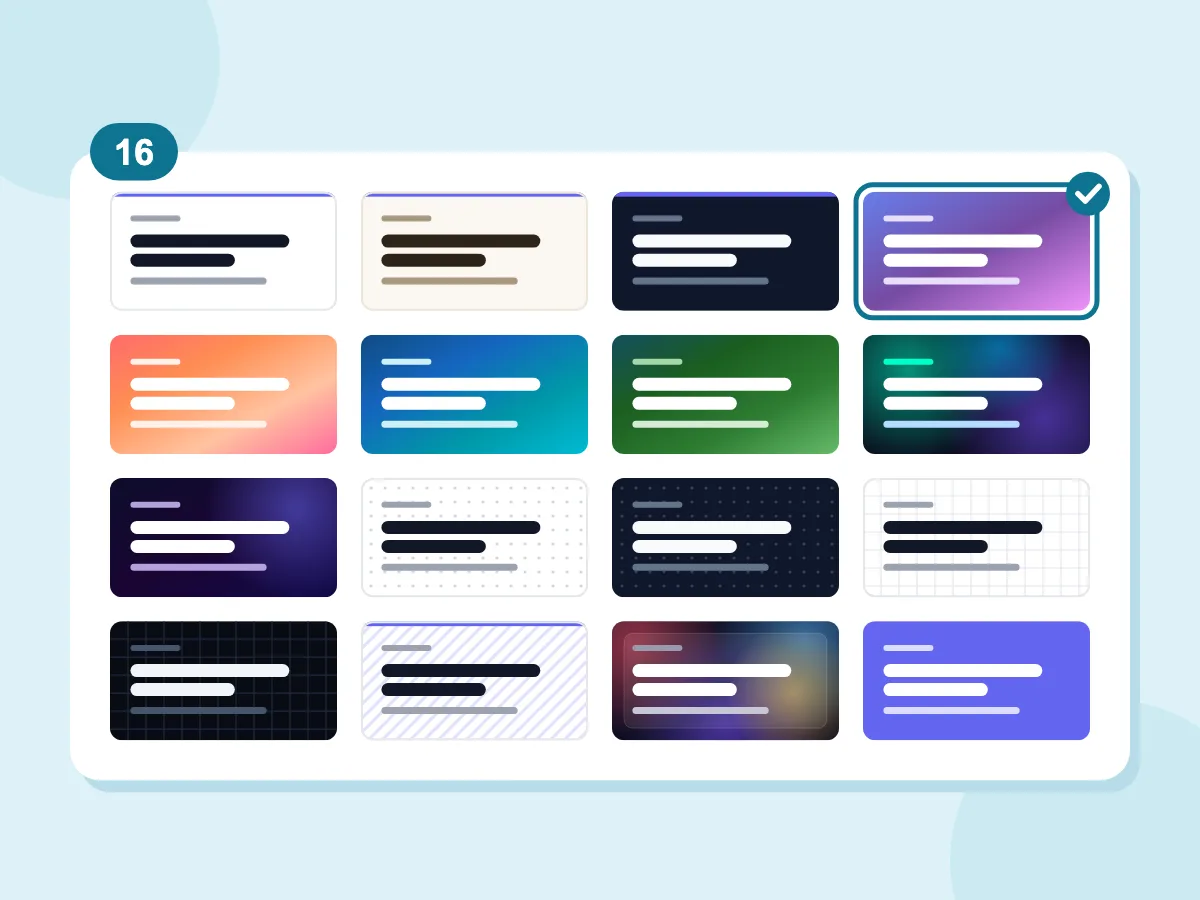
16 Ready-Made Templates
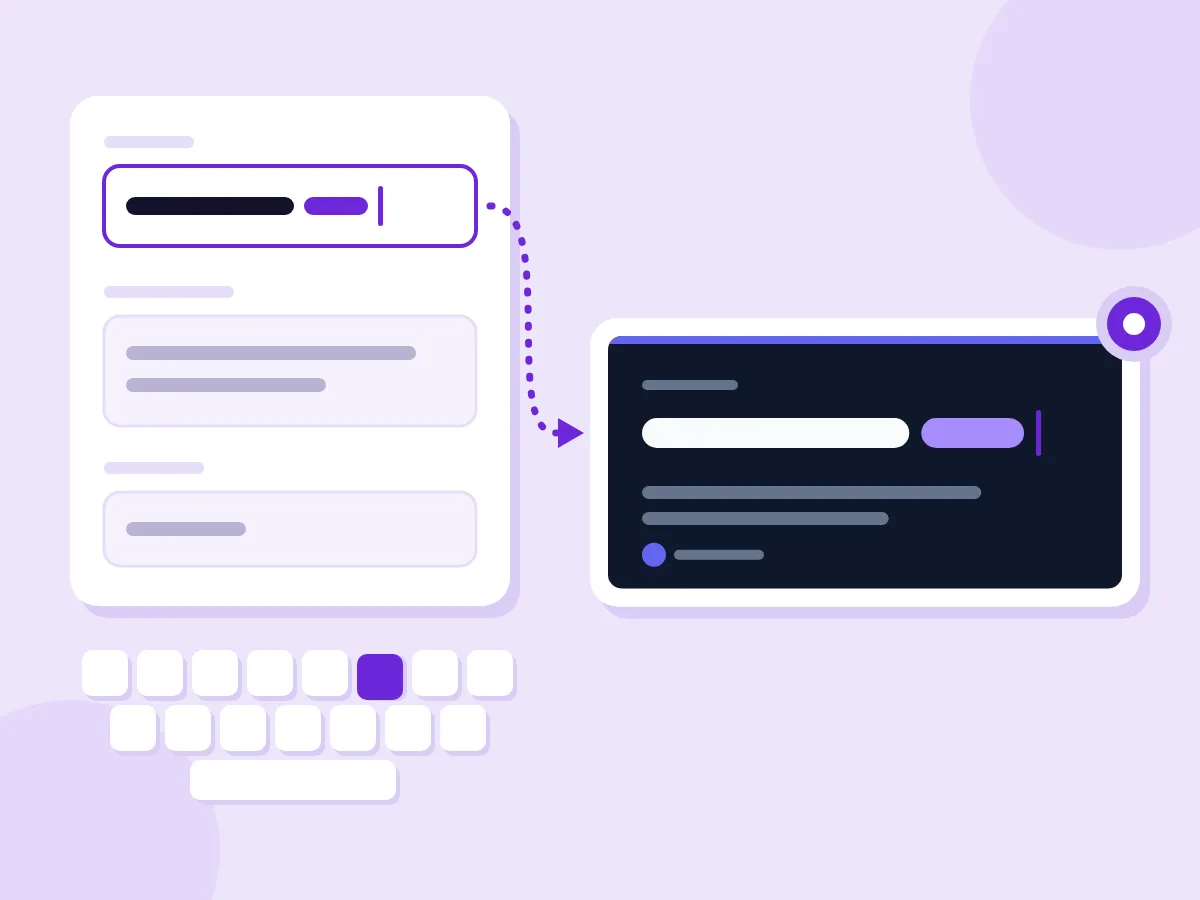
Live Preview as You Type
- 100% Browser-Based — Zero Uploads
- Free — No Account Required
How to Create an OG Image in 3 Steps
Enter Your Content
Press Open OG Image Editor, then type your Title, Description and Site Name. The preview updates as you type.
Pick a Template & Brand Color
Choose one of 16 templates, such as Clean, Dark, Gradient or Grid (Light). Most of them pick up your Brand Color. Add a logo or a background photo under Custom Image if you like.
Download Your Image
Under Export, choose JPG or PNG, then press Download JPG or Download PNG. The file is always 1200×630 px, the standard Open Graph image size.
When You Need a Custom OG Image
Blog & Content
- Create a branded preview for every blog post before publishing
- Make matching OG images for your documentation pages
- Design consistent previews for newsletter archive pages
- Make your article links stand out on X, LinkedIn and Slack
Product & SaaS
- Build a branded preview for each feature page
- Make OG images for changelog and release posts
- Create cards for pricing, about and signup pages
- Design previews for each campaign landing page
Developers & Agencies
- Mock up a card design before you build a dynamic generator
- Create a fallback OG image for pages that don't have their own
- Make client cards in their brand color, with their logo
- Try a few headline versions side by side
What Is an Open Graph (OG) Image?
An Open Graph image, or OG image, is the picture that shows up when someone shares a link to your page on Facebook, LinkedIn, X, Slack and similar apps. You set it with the og:image tag in the page's HTML. A social media post image is different: you upload that to one platform yourself.
Open Graph Image Size, Format and Testing
A good OG image is the right size, light enough to load fast and easy to read at phone size. These answers help you get each part right.
What Is the Best Open Graph Image Size?
Use 1200×630 px, a 1.91:1 shape, which works on all the major platforms. That is the size this generator makes. Each platform has its own limits:
- Facebook: at least 1200×630 for sharp previews. Below 600×315, the link shows a small image instead of a large one. Files can be up to 8 MB.
- LinkedIn: at least 1200×627 at 1.91:1, up to 5 MB.
- X: large cards use a 2:1 shape, so a thin strip at the top and bottom of a 1200×630 image can be cut. Files must be under 5 MB.
JPG or PNG: Which Format Is Best for an OG Image?
JPG is the default here and keeps most cards small. The Quality slider runs from 50% to 95%, and the estimated size turns green under 200 KB. PNG keeps every pixel but can reach 500 KB or more. Already have a finished picture? Use the Facebook Post preset (1200×630) in the image resizer instead.
Logo or Background: How Should You Add Your Own Image?
Pick the Image Mode under Custom Image. It accepts JPG, PNG, WebP and SVG files.
- Logo (overlay): your image sits in the bottom-left corner of the template you picked, about 80 px tall.
- Background (fill): your photo covers the whole card and is cropped to fit. The edges are darkened slightly, and the text sits on a dark bar at the bottom.
- Background mode uses its own text layout, so the template you picked doesn't change the result.
What Makes a Good OG Image?
Most people see your card at phone size, so keep the title short and bold. Templates show about 65 to 70 characters of the title and 110 to 120 of the description, then cut the rest. Keep key words away from the edges, since some apps trim them. Use the same template and Brand Color on every page so readers spot your links.
How Do You Test Your OG Image?
Publish the page, then paste its URL into Facebook's Sharing Debugger or LinkedIn's Post Inspector. Both show the card and fetch a fresh copy. For X, paste the link into a new post: the card preview shows without posting. If an old image keeps showing, upload the new one under a new file name and update the tag.
More Design & Generator Tools
Generate, convert and design, all free and in your browser.
OG Image Generator — Frequently Asked Questions
Common questions about creating Open Graph images online
What is the correct OG image size?
Use 1200×630 pixels, a 1.91:1 shape. This tool always exports at exactly that size. Facebook needs at least 600×315 to show a large preview, and LinkedIn asks for at least 1200×627. One 1200×630 image works on Facebook, LinkedIn and X, and in most chat apps that show link previews.
What size is a Twitter (X) card image?
X's large image card uses a 2:1 shape, at least 300×157 px and under 5 MB. A 1200×630 OG image works there too, though X may trim a thin strip from the top and bottom. X reads og:image when there is no twitter:image tag. To get the large card, also add <meta name="twitter:card" content="summary_large_image" /> to your page.
Does this generator add the meta tags to my website?
No. It makes the image file only. You upload the file to your site and add the og:image tag yourself, as shown in the last question below. Many website builders and blog platforms also have a social or share image field where you can upload it instead.
Which fonts and languages does the OG image support?
Every template uses the Inter font in regular and bold. The editor loads Inter's Latin character set only, so English and most Western European languages work. Chinese, Japanese, Korean, Arabic and Cyrillic text won't show correctly. You can't upload your own font.
Can I use these OG images commercially?
Yes. The images you make are yours to use on personal and business sites, with no watermark and no credit needed. The Inter font is licensed under the SIL Open Font License, which allows commercial use. If you add a logo or photo, make sure you have the right to use it.
How do I add an OG image to my website?
Upload the downloaded image to your site or CDN, then add the og:image meta tag inside your page's <head>: <meta property="og:image" content="https://yourdomain.com/og/page-name.jpg" />. Use the full URL, starting with https. Also add og:image:width and og:image:height tags set to 1200 and 630. After you publish, use Facebook's Sharing Debugger and LinkedIn's Post Inspector to refresh the cached preview.