Convert HEIC to JPG Online — Free
Turn iPhone and iPad HEIC photos into JPGs that open on any device. Convert one photo or a whole batch at full size, then download a JPG or one ZIP. Your photos never leave your device.
Convert HEIC to JPG Now
Open PicsSizer's free HEIC to JPG converter — works in your browser, no uploads required.
HEIC → JPG
Format
1920×1280 px
Not resized
1.1 MB → 1.5 MB
JPG is bigger
100% private. Nothing is uploaded.
HEIC vs JPG: Which Format Should You Use?
Use JPG when a photo has to open on any device, site or app. Keep HEIC on Apple devices, where its smaller files save space.
| Feature | HEIC | JPG |
|---|---|---|
| Compatibility | Built into Apple devices. Windows may need add-ons, and on the web only Safari shows it. | Opens almost everywhere: phones, computers, browsers and apps. |
| File size (our test photo) | Smaller. Our test photo was 1.1 MB as a HEIC. | Bigger. The same photo was 1.5 MB as a JPG at 90% quality. |
| Quality | Lossy, but fits similar quality into less space. Can hold 10-bit color. | Lossy. Higher quality settings make bigger files. Standard JPG holds 8-bit color. |
| Transparency | Supported, but phone photos rarely use it. | Not supported. PicsSizer fills see-through areas with white or a color you pick. |
| Editing support | Apple Photos and Preview can edit it. Other editors vary. | Every common photo editor opens and saves it. |
How to Convert HEIC to JPG
Open the HEIC Converter
Click Open HEIC Converter. It runs in your browser, with no account and nothing to install.
Select Your HEIC Files
Drag and drop your HEIC or HEIF photos onto the converter, or browse for them. Add as many as you need, then press Convert All.
Download as JPG
Each photo is saved as a JPG at 90% quality unless you change it. Download photos one at a time, or press Download All to get one ZIP file.
Bulk HEIC to JPG, High Quality
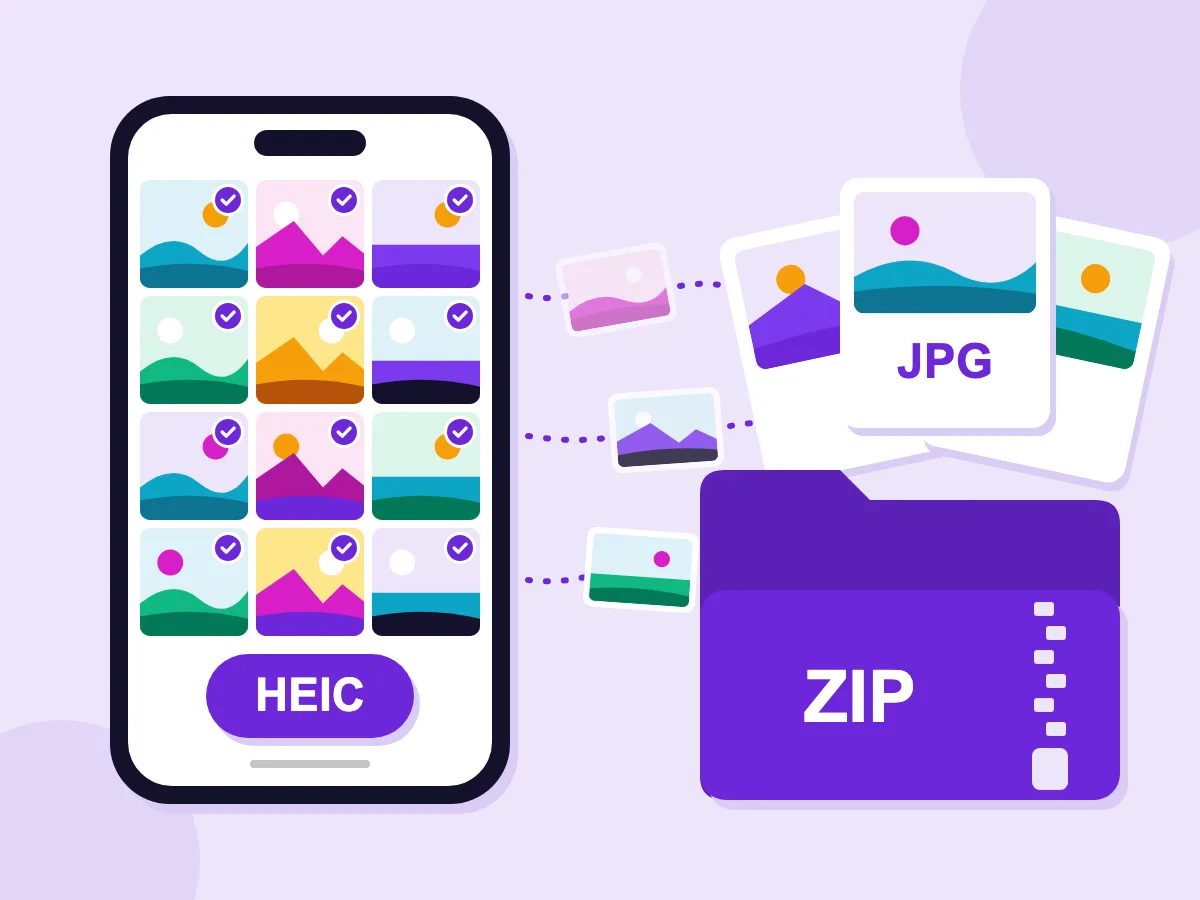
Batch convert multiple HEIC files
Add as many HEIC photos as you want, then press Convert All. One photo downloads as a JPG. Two or more come in a single ZIP file, so a whole batch is one download.
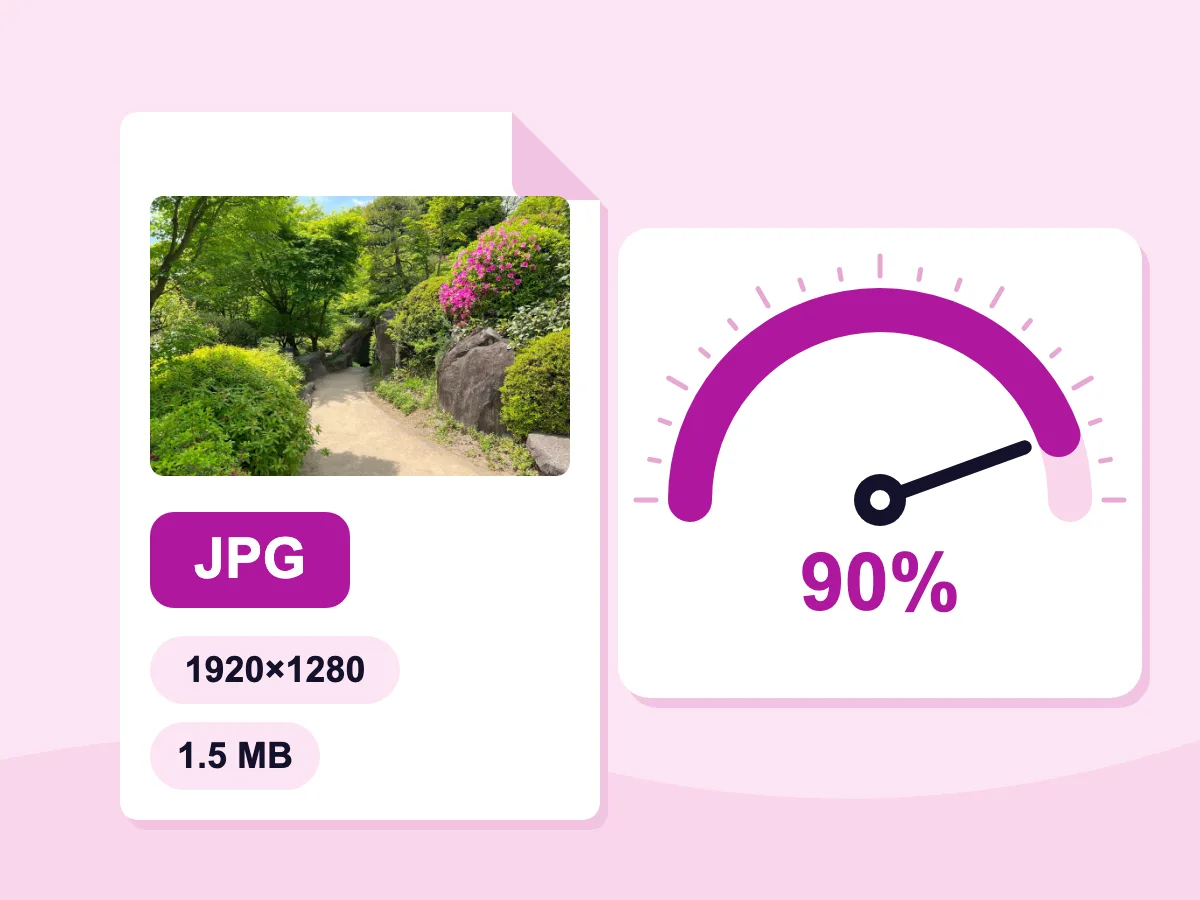
Full-size JPGs at high quality
Your photo keeps its exact width and height: our 1920×1280 HEIC came out as a 1920×1280 JPG. Quality starts at 90%. Move the slider up for more detail or down for a smaller file.
- 100% private — files stay on your device
- 100% free, no account needed
- Fast in-browser conversion
When You Need to Convert HEIC Files
Compatibility
- Share with Android users
- Upload to websites & apps
- Open on Windows PCs
- Use in older software
Social Media
- Instagram uploads
- Facebook photo posts
- Twitter / X image posts
- WhatsApp photo sharing
Professional
- Email photo attachments
- Graphic design workflows
- E-commerce product photos
- Print lab submissions
What Is a HEIC File?
A HEIC file is a photo in the High Efficiency Image Container format, which iPhones and iPads use by default. It takes less space than a JPG, but many Windows PCs, sites and apps can't open it. Converting HEIC to JPG re-saves the photo as a real JPG. Renaming the file to .jpg doesn't do that.
How to Convert HEIC to JPG Without Losing Quality
Every JPG is saved with some compression, so no HEIC to JPG converter is fully lossless. These answers help you keep the photo looking right and choose what to keep.
Which Quality Setting Should I Use?
Quality starts at 90%, which is hard to tell apart from the HEIC at normal sizes. Use 95–100% if you plan to edit or print the photo, or go lower for a smaller file. Even 100% is not lossless. The JPG is usually bigger than the HEIC, because JPG packs photos less tightly.
Can I Keep the Date and Location?
Yes. By default the converter strips metadata, which removes the date taken, camera details and GPS location. To keep them, turn off "Strip metadata (EXIF / IPTC / GPS)" under Privacy before you convert. You can check the result with the image metadata viewer.
What Happens to Live Photos, Bursts and HDR Photos?
Each HEIC file becomes one still JPG.
- Live Photos: the JPG holds the still photo only, with no motion or sound.
- Bursts: each shot you keep is its own photo, so add them all and convert them in one batch.
- HDR and 10-bit photos: JPG stores 8-bit color, so you get a standard photo. The extra HDR brightness is not carried over.
Should I Convert HEIC to JPG or PNG?
Pick JPG for sharing, uploads and email, since its files are smaller and open everywhere. Pick PNG in the "Convert to" list when you want no further quality loss, such as before editing, but expect a much larger file. If a JPG is still too big to upload, shrink it with the image compressor.
More Image Conversion Tools
Convert, compress, and optimize your images for any platform
Frequently Asked Questions — HEIC to JPG Conversion
Everything you need to know about converting HEIC files to JPG
What is a HEIC file and why can't I open it?
HEIC is the photo format iPhones and iPads use by default since iOS 11. It saves space, but support outside Apple is patchy. Windows may need two add-ons from the Microsoft Store, one of them paid, and most browsers other than Safari can't show it. Converting to JPG makes the photo open everywhere.
Does converting HEIC to JPG reduce image quality?
A little. JPG is a lossy format, so the photo is compressed again when it is saved. At the default 90% quality the change is hard to see at normal viewing sizes. Move the quality slider up for more detail, or pick PNG in the "Convert to" list for no further loss.
Can I convert multiple HEIC files at once?
Yes. Add as many HEIC or HEIF files as you like and press Convert All. Download each JPG on its own, or press Download All to get them in one ZIP file. There is no set file count limit, but very large batches depend on your device's memory.
How do I convert HEIC to JPG on Windows without software?
Open this page in a modern browser such as Chrome, Edge or Firefox, and drop in your HEIC files. The converter runs in the browser, so there is nothing to install and no account to make. It works the same way on a Mac, a Chromebook or an Android phone.
Is it safe to convert HEIC to JPG online?
Yes. Your HEIC files are converted on your own device and never uploaded, so no one else sees your photos. By default the converter also removes the GPS location and camera details from each JPG.
How do I stop my iPhone from taking photos in HEIC format?
Go to Settings → Camera → Formats on your iPhone and choose Most Compatible. New photos are then saved as JPG instead of HEIC. Photos you already took stay HEIC, so convert those here in one batch.